
Common Issues and Fixes
My theme doesn't support app blocks
If your theme does not support app blocks, you still have a couple of options to get the Wishlist working in your store.
For a floating button approach, you can read this article to add a Floating Wishlist, and this article to add a Floating Wishlist Button on the Product Page.
For a more advanced setup, you can use the inject snippet method — see the relevant guides for adding a Go to Wishlist button in the header and an Add to Wishlist button on the Product Page and product cards.
Another option — our developers can set up the block support for your theme for free. You can make that request through contact us form.
Wishlist Header Link is Missing from the Header
If you've added the Wishlist Header Link block to your store header but it isn't showing up, here are the most common reasons and how to fix them:
-
The app plan is not activated.
Make sure your app subscription is active. The button will not appear on your storefront if the plan is inactive or on a free trial that has expired.
-
Wishlist Helper is not enabled for this theme.
Go to your Shopify Admin → Sales Channels → Online Store → Themes, click Customize on your active theme, then open the App Embeds section and make sure Wishlist Helper is toggled on.
-
You are using a custom theme that does not render all blocks automatically.
Some custom themes require manual code integration. Check your theme code to confirm that all app blocks are being rendered correctly.
-
The Wishlist page URL has not been added to your theme settings.
Open the Theme Editor for your active theme, navigate to the Header Link settings, and make sure the Wishlist page URL is filled in.
-
Display is set to "Text only" but the Link Label field is empty.
If the button is configured to show text but no label has been entered, nothing will appear. Either switch the display mode to icon, or enter a label in the Link Label field.
-
The icon or text color blends into the header background.
The button may be rendering but invisible due to a color conflict. Check the button color settings and adjust the icon and text colors to contrast with your header.
-
Spacing settings are pushing the button out of position.
Incorrect spacing values can cause the button to shift outside its visible area. Review the Spacing settings in the button configuration and reset them if needed.
Wishlist Button is Missing from the Product Page
If you've added the Wishlist button to your product page but it isn't appearing, the following reasons are most common:
-
The app plan is not activated.
Make sure your app subscription is active. The button will not appear on your storefront if the plan is inactive or on a free trial that has expired.
-
Wishlist Helper is not enabled for this theme.
Go to your Shopify Admin → Sales Channels → Online Store → Themes, click Customize on your active theme, then open the App Embeds section and make sure Wishlist Helper is toggled on.
-
You are using a custom theme that does not render all blocks automatically.
Some custom themes require manual code integration. Check your theme code to confirm that all app blocks are being rendered correctly.
-
Display is set to "Text only" but the Add/Remove Label field is empty.
If the button is configured to show text but no label has been entered, nothing will appear. Either switch the display mode to icon, or enter a label in the Add/Remove Label field.
-
The icon or text color blends into the page background.
The button may be rendering but invisible due to a color conflict. Check the button color settings and adjust the icon and text colors to contrast with your product page background.
-
Spacing settings are pushing the button out of position.
Incorrect spacing values can cause the button to shift outside its visible area. Review the Spacing settings in the button configuration and reset them if needed.
-
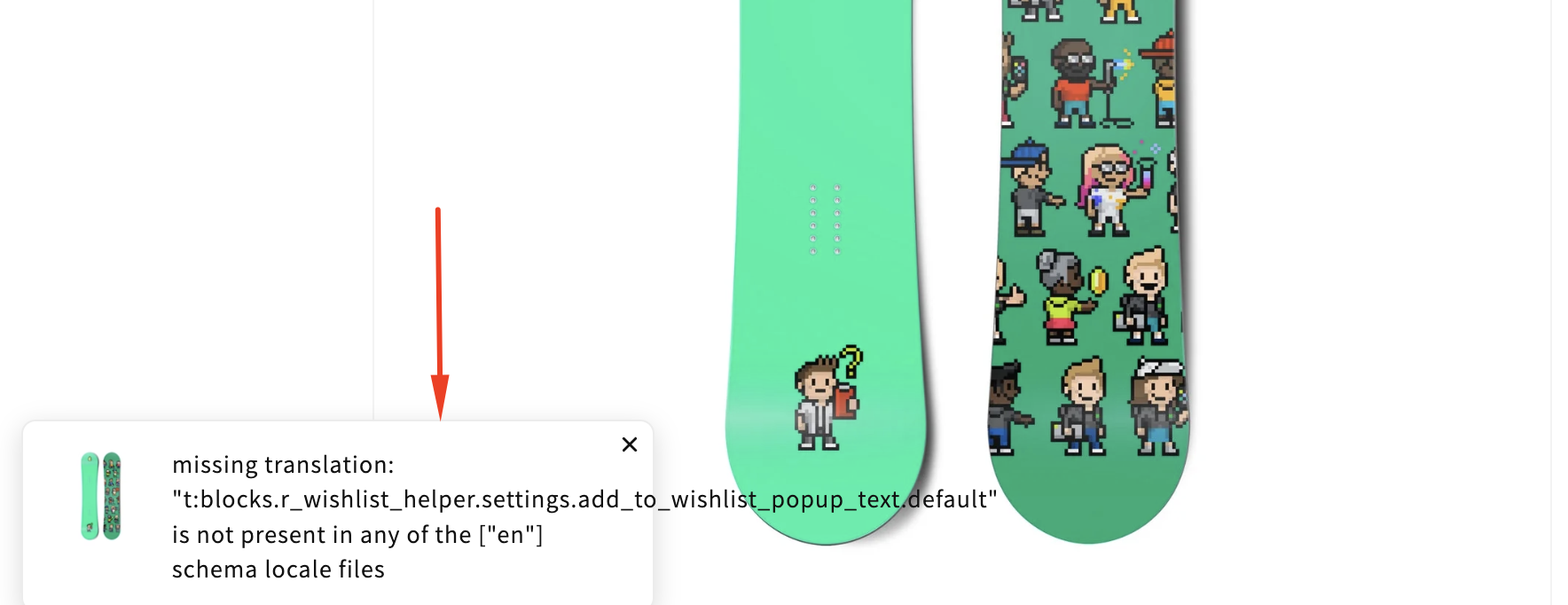
You see "Missing translations error" in some Wishlist components
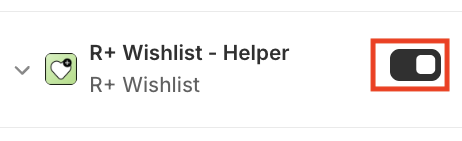
Try to disable R+ Wishlist Helper in App Embeds in your Theme editor and enable it again.
Do you need help?
If you have any questions or run into issues, please contact us — we’re happy to help.