
How to translate the app content with Translate & Adapt
R+ Wishlist supports full content translation. To translate this content, you need a translation app installed on your Shopify store. This guide walks you through using Shopify Translate & Adapt, a free app provided by Shopify, to add languages and translate all app content.
A smaller set of texts can't be translated through the Theme Editor, either because they appear inside the Customer Account page (which Translate and adapt doesn't cover) or because they're shared pieces of text used across the app rather than a single block setting. Check this article to learn how to translate these texts.
Step 1: Install Shopify Translate & Adapt
- From your Shopify Admin, go to Settings > Apps
- Click Shopify App Store in the top right corner
- Search for Shopify Translate & Adapt (developed by Shopify) and click Install
If you already have another translation app installed (such as Langify, Weglot etc.), you may use it instead - as long as it supports translating app content via Shopify's translation API. However, this guide covers the Shopify Translate & Adapt workflow specifically.
Step 2: Add a Language to Your Store
- From your Shopify admin, go to Settings > Languages.
- Click Add language.
- Select the language you want to add from the drop-down menu. If you have multiple markets set up, choose which active markets should have access to this language.
- Click Add or Save.
You can add as many languages as needed. Repeat this process for each language you want to translate your store into.
Step 3: Translate Content
With your language added and Shopify Translate & Adapt installed, you're ready to translate the content used by R+ Wishlist.
-
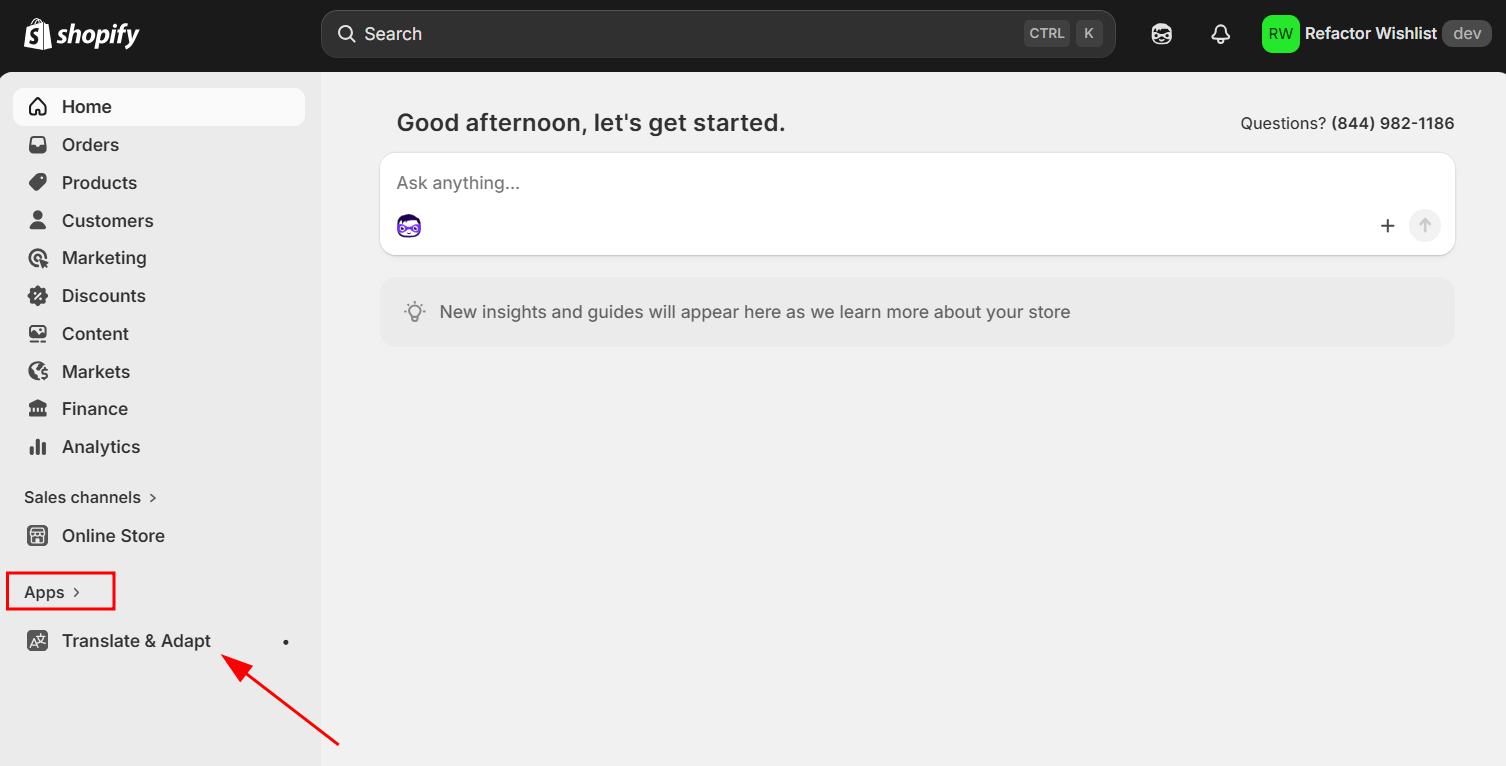
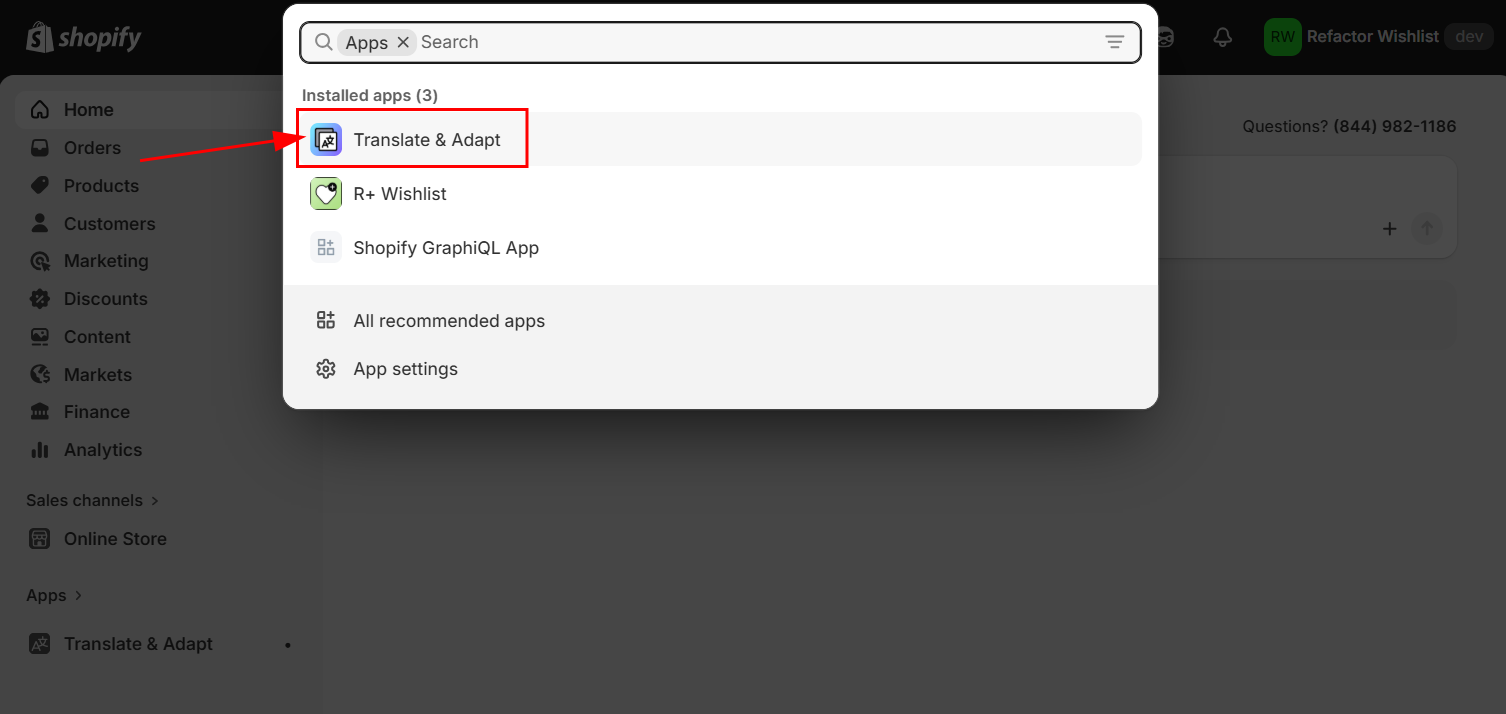
Open the Shopify Translate & Adapt App from your Shopify Admin under Apps
-
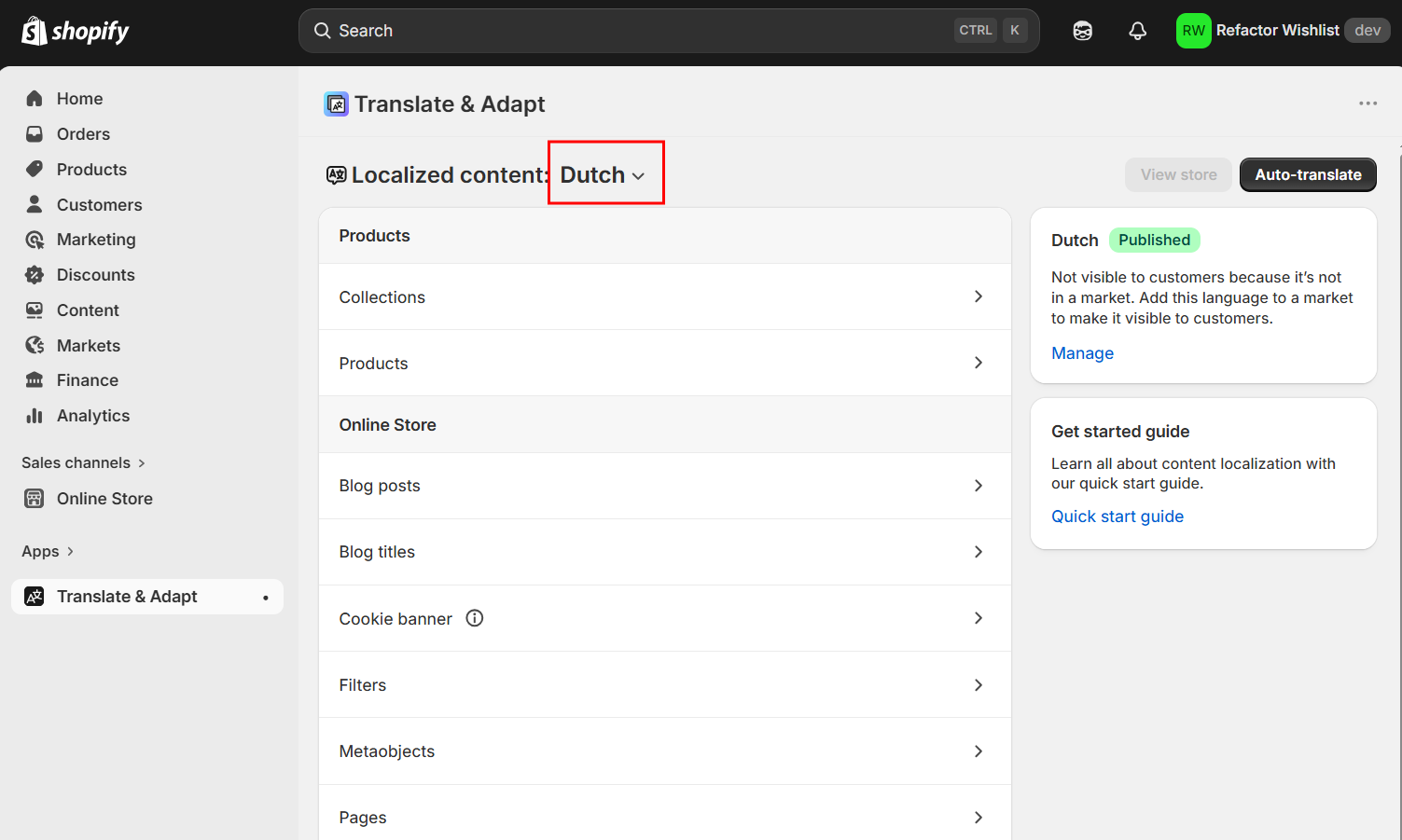
Select the language you want to translate from the drop-down menu at the top-left of the app
-
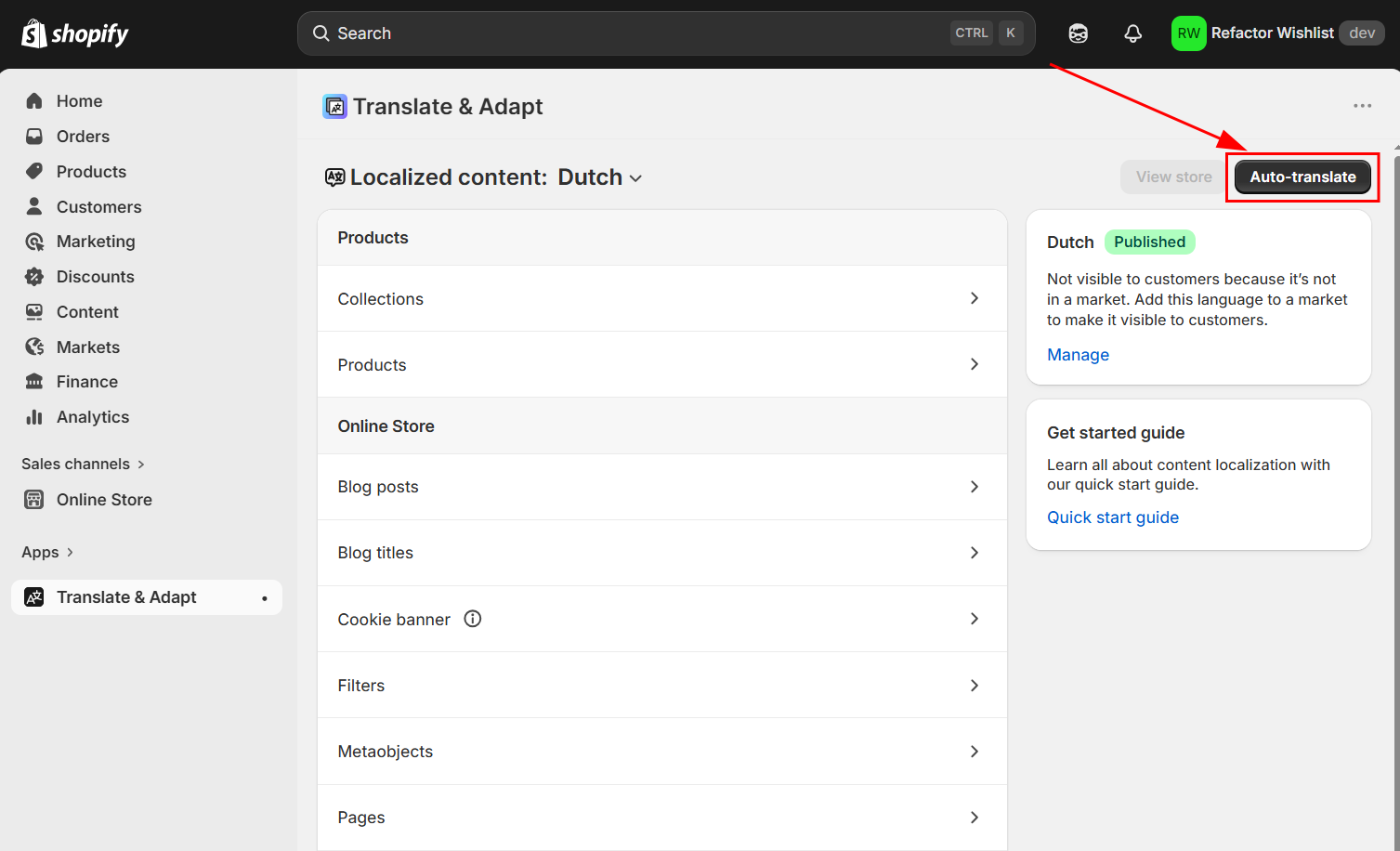
Auto-translate: Click the Auto-translate button at the top right to automatically generate translations. You can use this for up to two languages for free.
-
Manual Edits & Review: Use the side-by-side editor to review the translations.
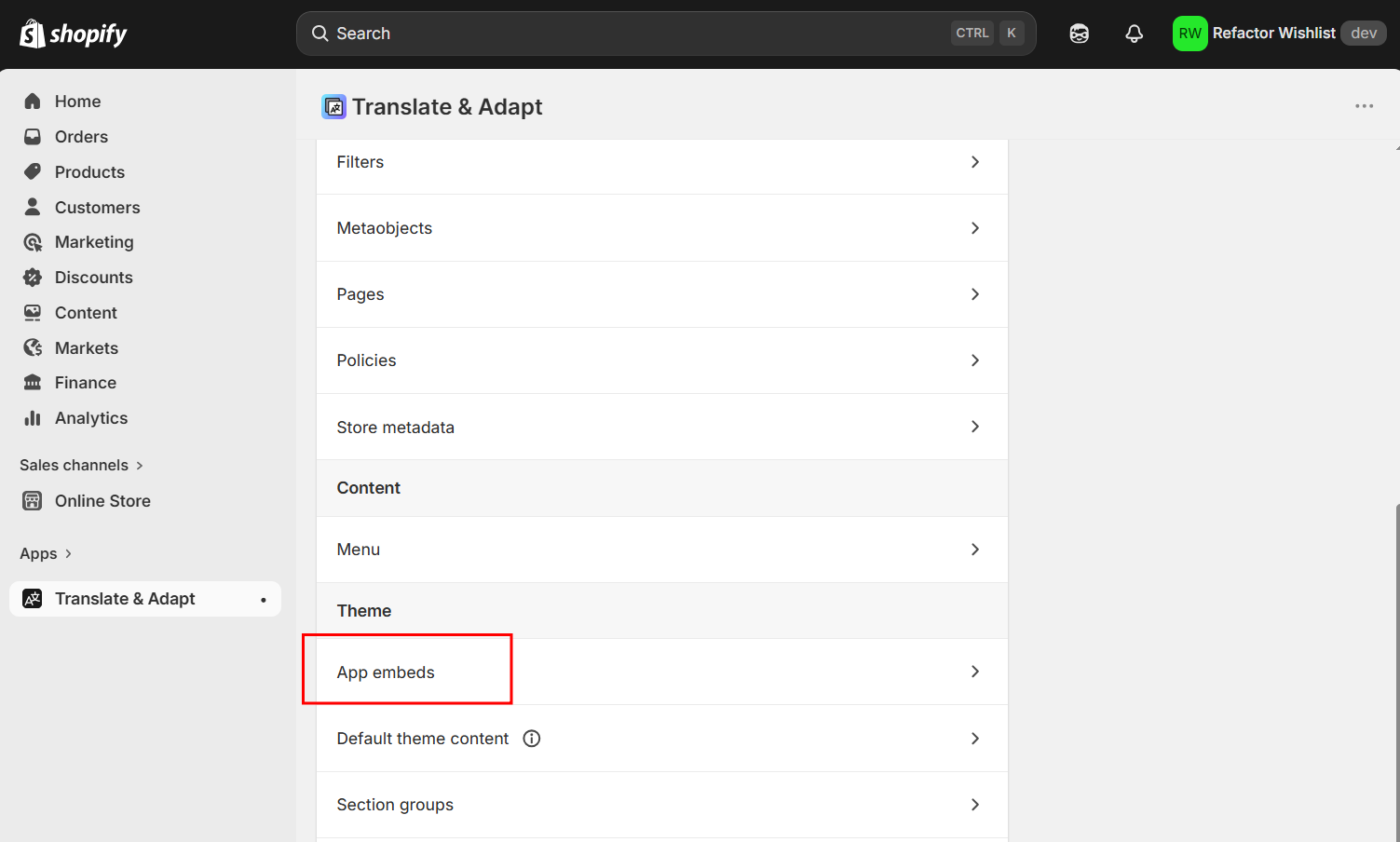
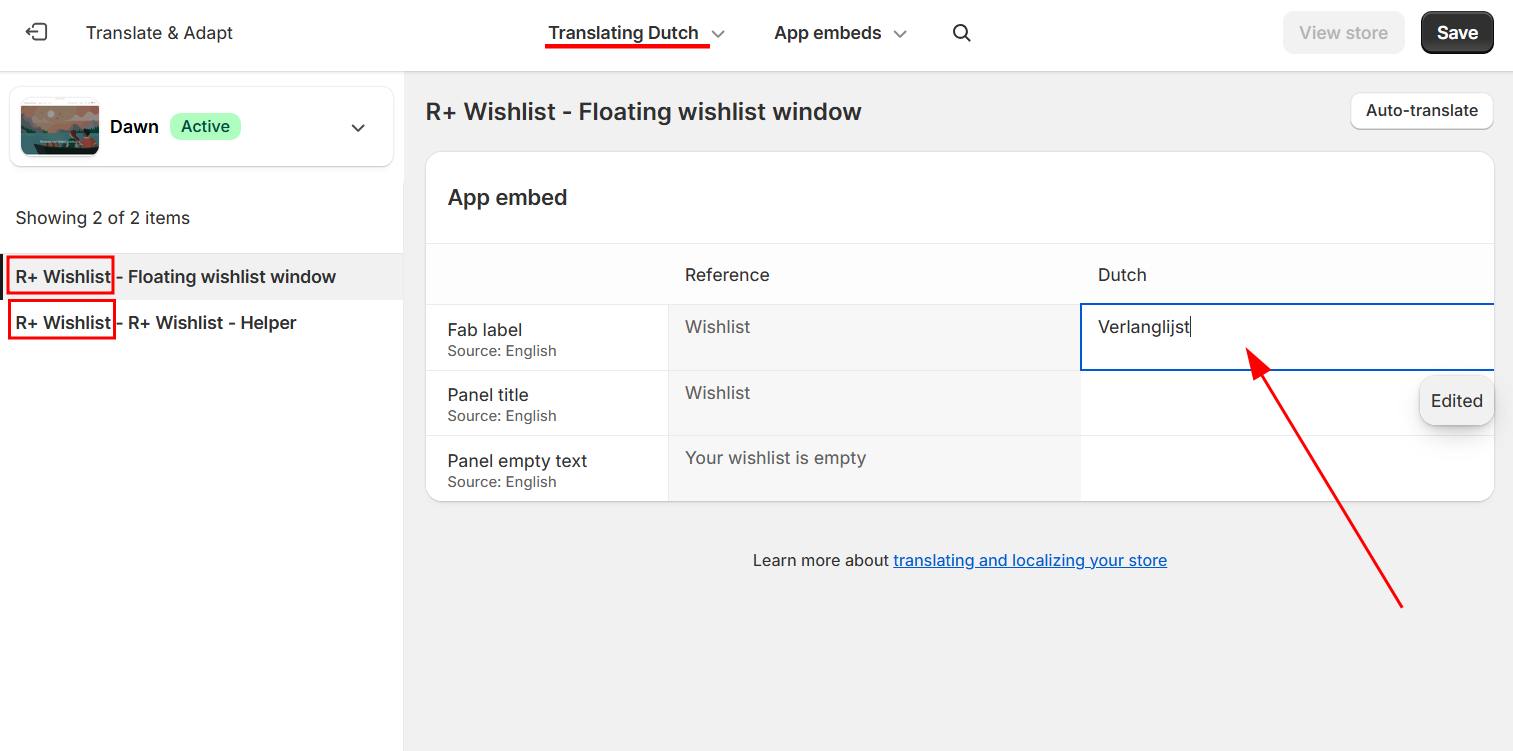
For Example, open "App embeds" and navigate to the "R+ Wishlist". You can type directly into the right column to manually adjust translated content.
How to translate the "Header Link" app block
-
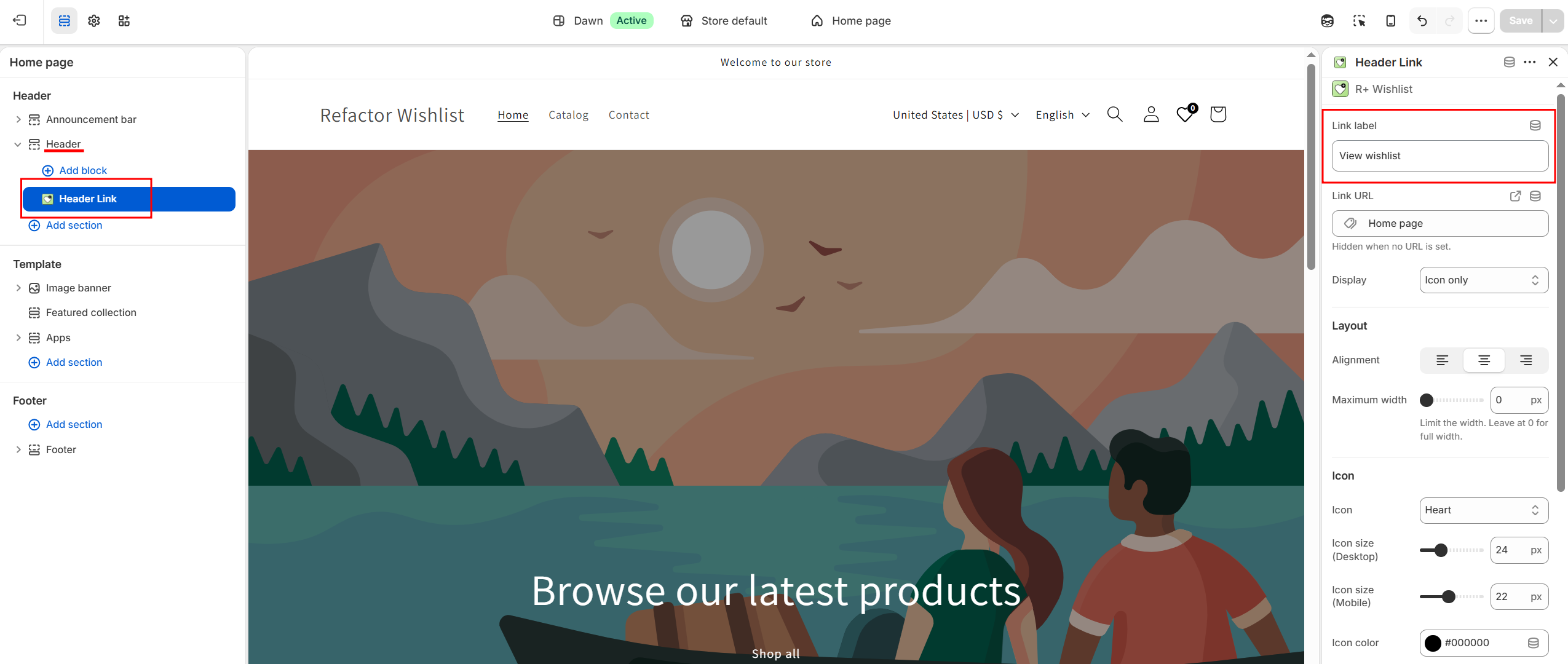
Before you begin: Ensure the Header Link app block has been added to the Header Section on your live theme. This is required for the translatable content to be available in Shopify Translate & Adapt.
-
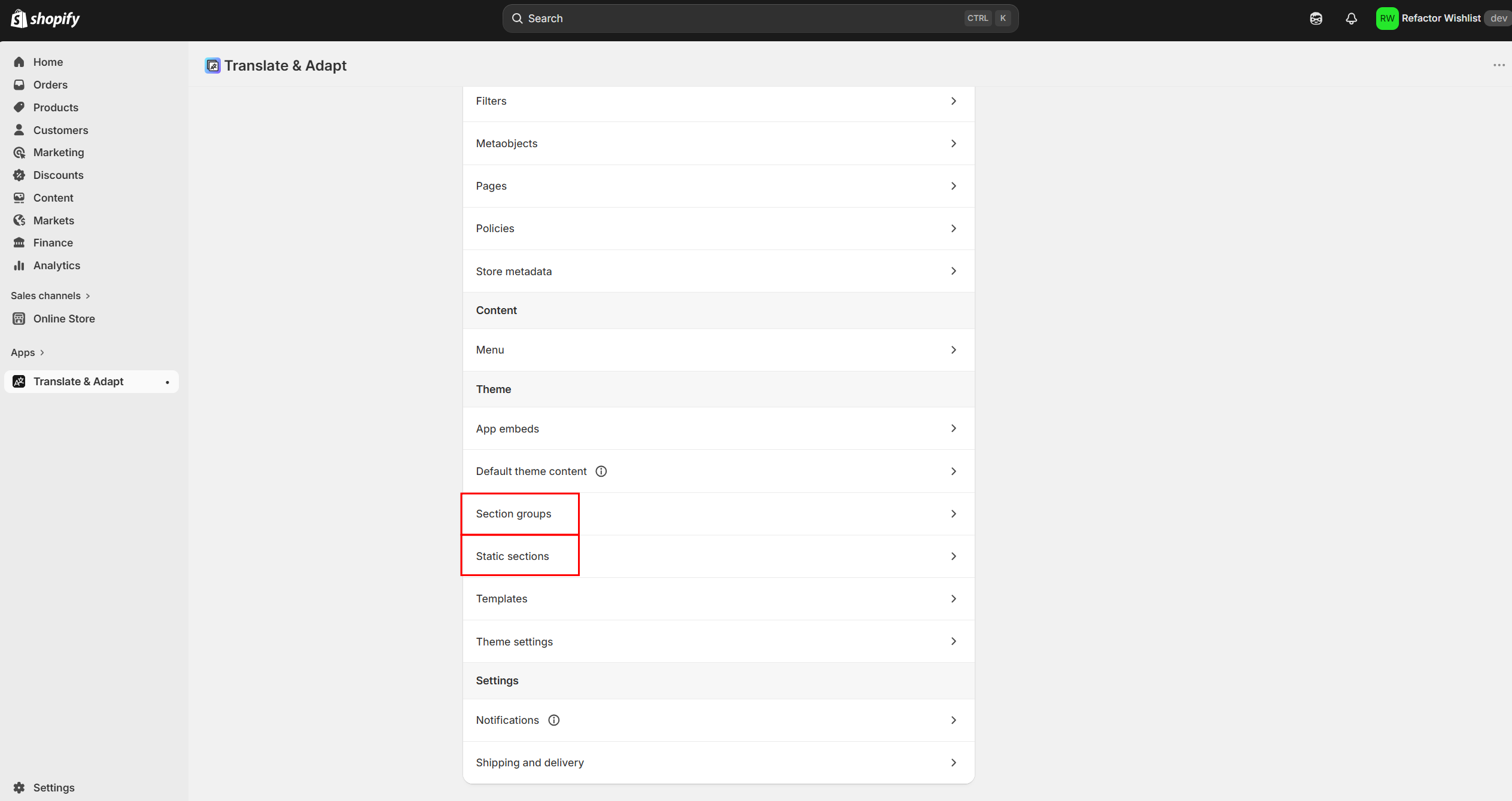
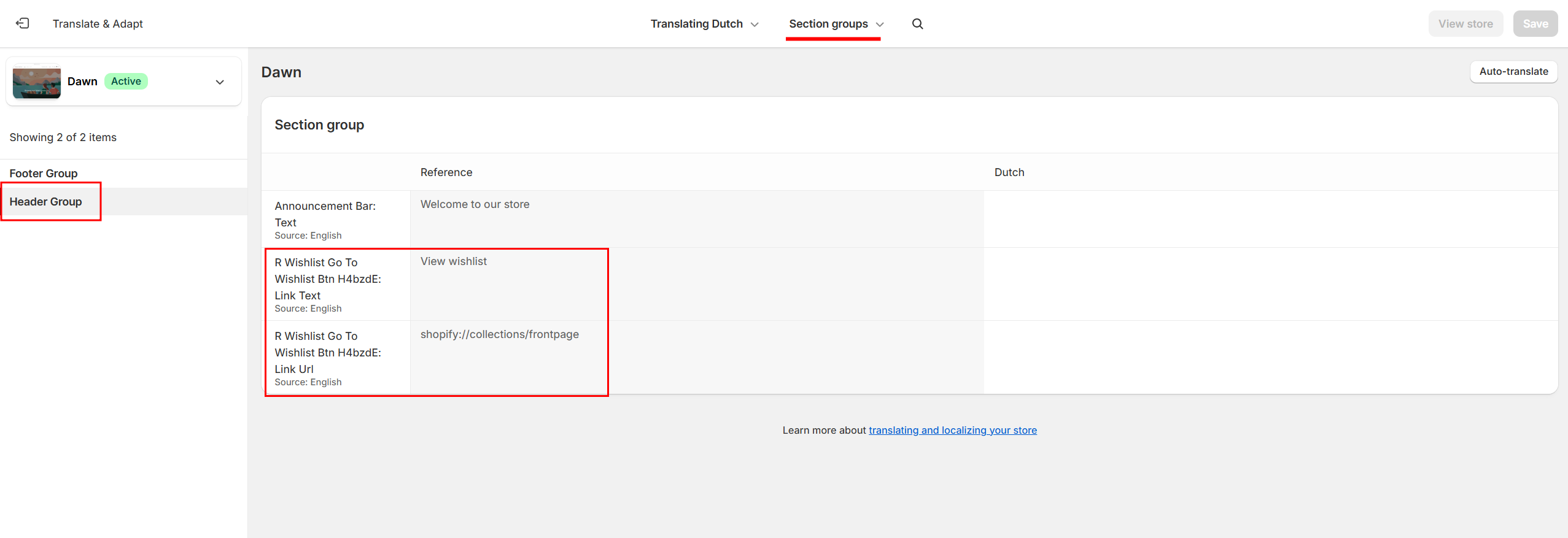
Inside the Shopify Translate & Adapt App, open "Section Groups". If the Header section is not part of the Header Group, it can be found under Static Sections > Header.
-
Find translatable content for the "Header Link" block in the Header Group.
How to translate the "Wishlist Page" app block
-
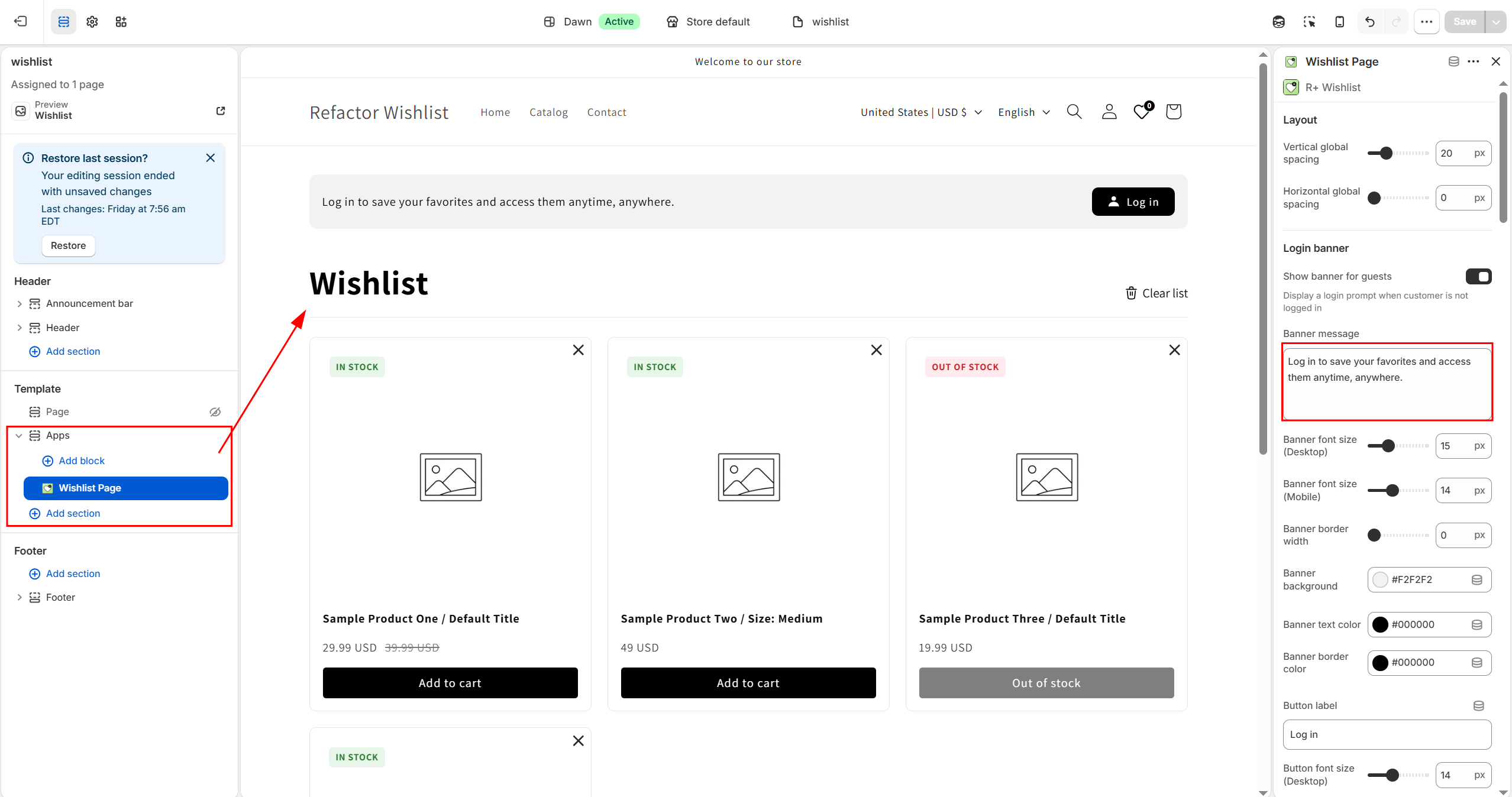
Before you begin: Ensure the Wishlist Page app block has been added to at least one template on your live theme. This is required for the translatable content to be available in Shopify Translate & Adapt.
-
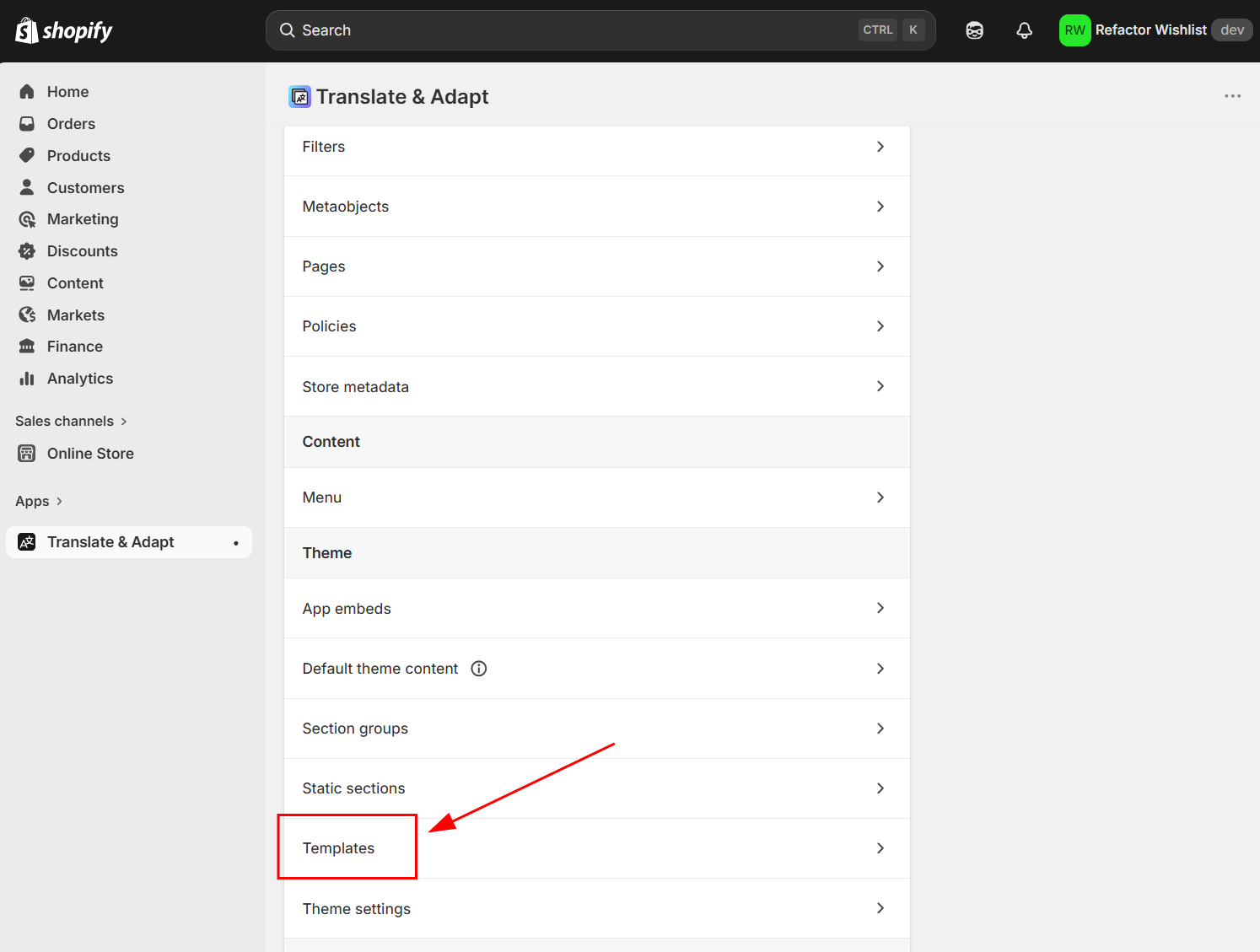
Inside the Shopify Translate & Adapt App, open "Templates".
-
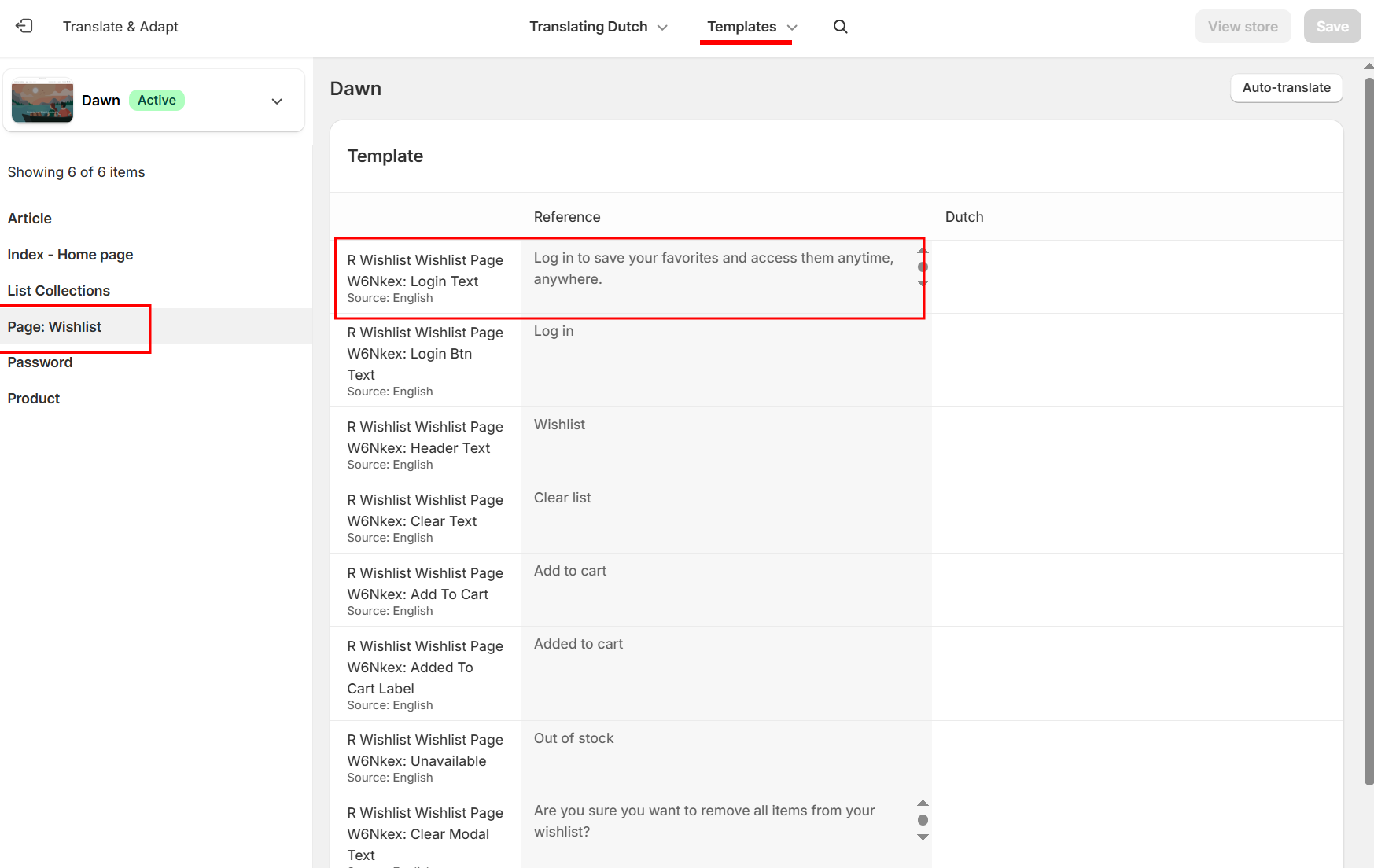
Find the page where the "Wishlist Page" block was added.
Name format: Page: template-title
Example with a different template name - "refactor-wishlist-test":
Ensure the template has been assigned to at least one page, and the Wishlist Page app block has been added to this specific template.


How to translate the "Add to Wishlist" app block
-
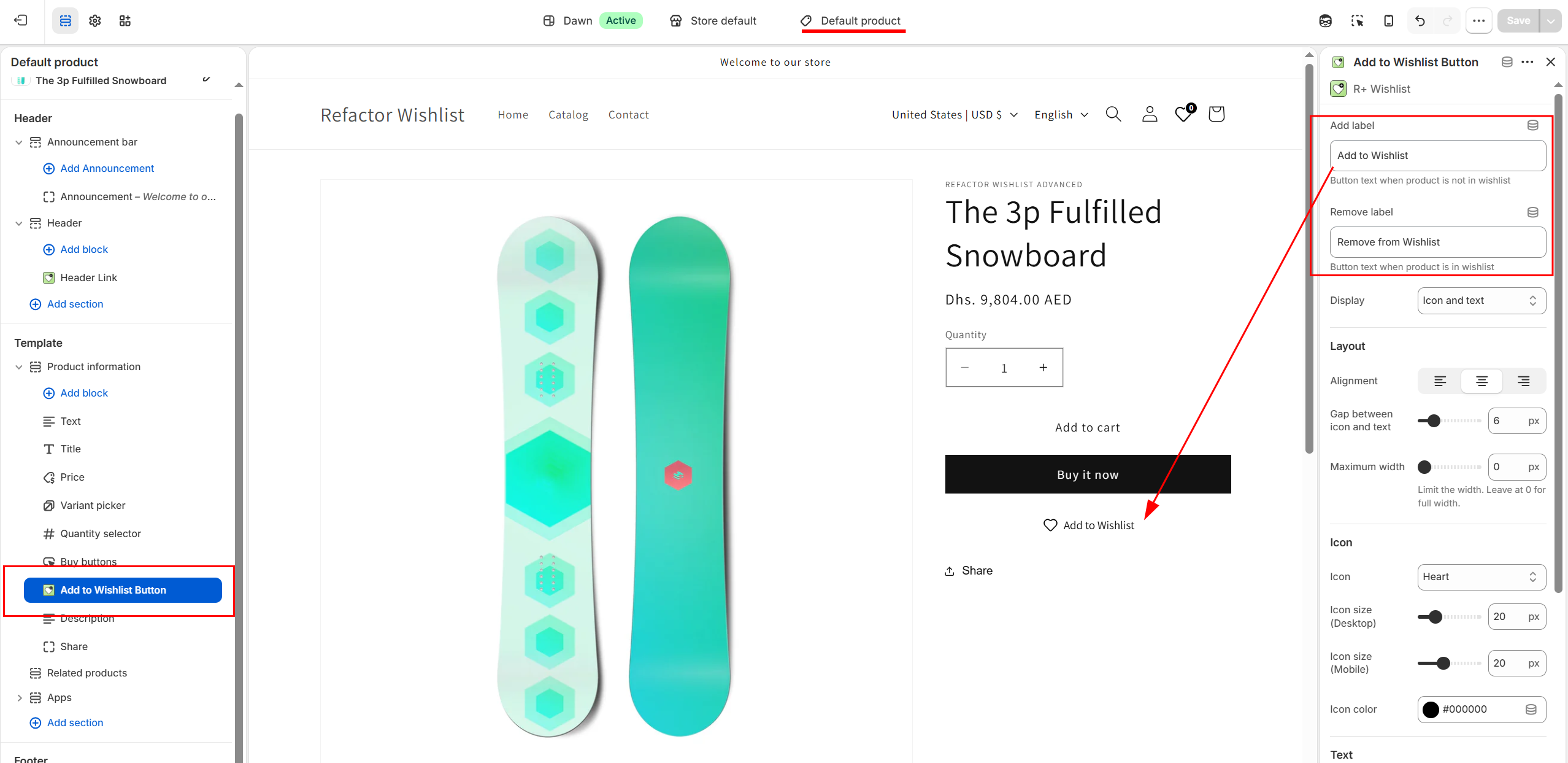
Before you begin: Ensure the Add to Wishlist app block has been added to the Product Section on your live theme. This is required for the translatable content to be available in Shopify Translate & Adapt.
-
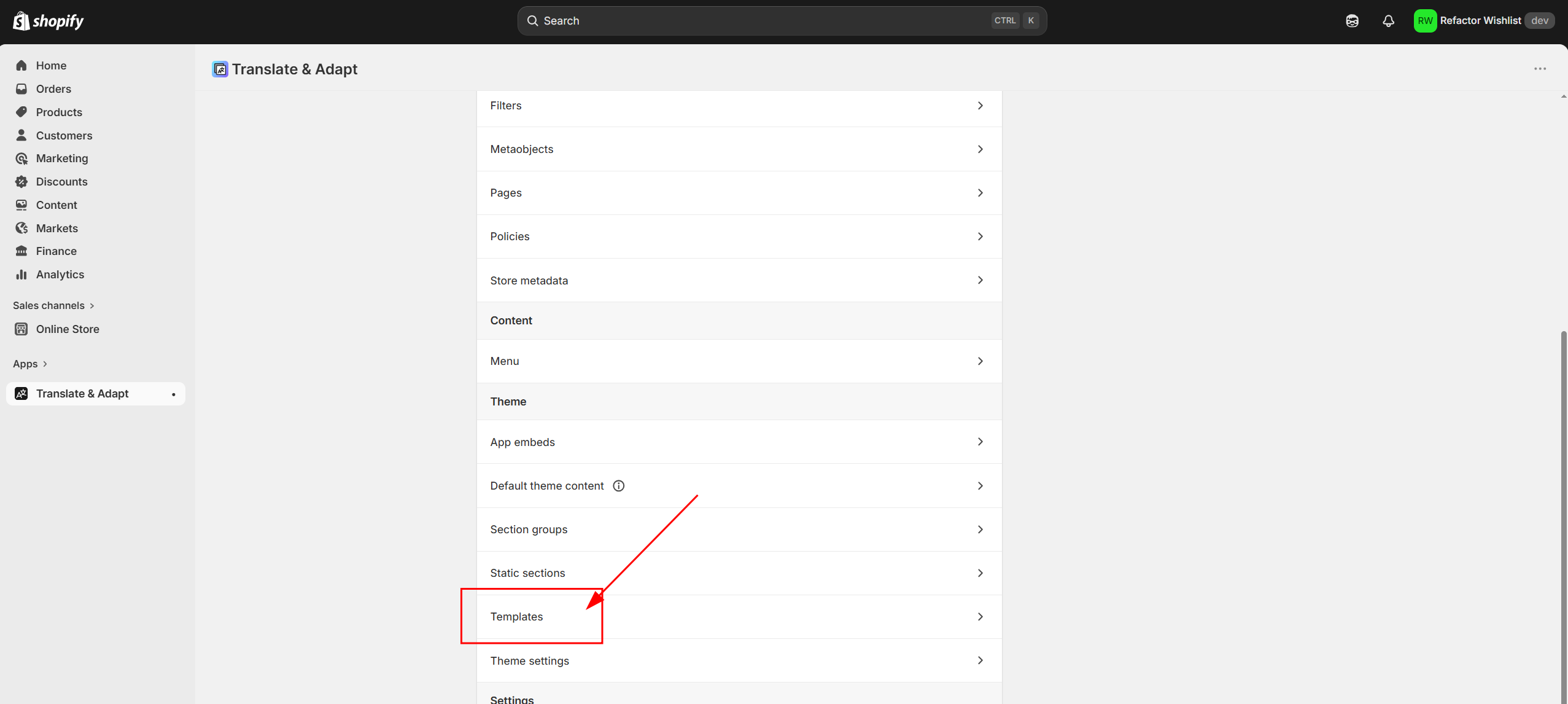
Inside the Shopify Translate & Adapt App, open "Templates"
-
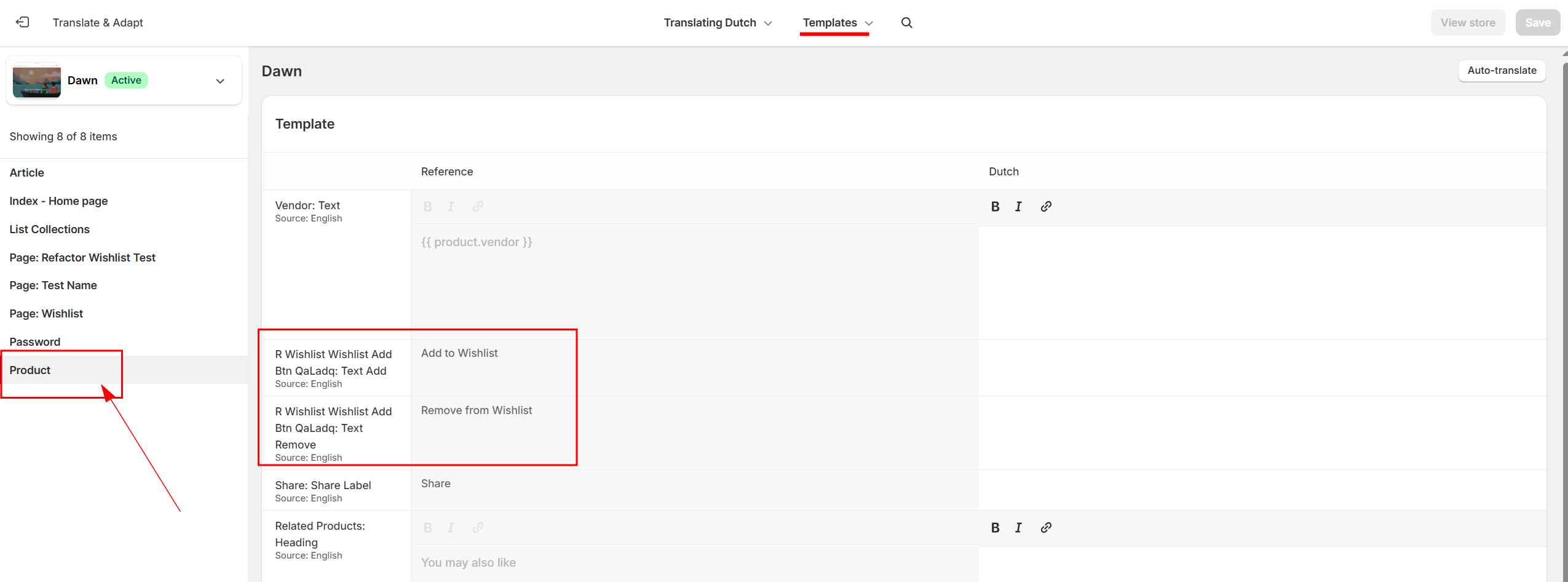
Find translatable content for the "Add to wishlist" block in the Product template.
How to translate Floating Wishlist content
Open "App embeds" and navigate to the "R+ Wishlist".
Tips & troubleshooting
Content not showing in Translate & Adapt?
Make sure R+ Wishlist is installed and active on your live theme. App content only appears in translation tools after the app has been used at least once on your storefront.
Changes not appearing on the storefront?
Ensure the language is published in Settings > Languages. Also, make sure your theme supports multiple languages - most modern Shopify themes do.
Can I use a different translation app?
Yes. Any translation app that integrates with Shopify's Translations API can be used to translate R+ Wishlist content. Shopify Translate & Adapt is recommended because it's free, officially supported, and requires no additional setup.
Do I need to retranslate after app updates?
If a new version of R+ Wishlist adds new content fields, those fields will appear as untranslated in your translation app. You'll only need to translate any newly added strings - existing translations are preserved.
Do you need help?
If you have any questions or run into issues, please contact us — we’re happy to help.