
Common Issues and Fixes
1. "Oops! Something went wrong." on the Map

This error typically appears when your Store Locator page URL hasn't been authorized in your Google Maps API settings. To fix it, add your store locator URL to the Google Maps API Referrer list. See this article for step-by-step instructions. Additionally, please check:
- The website domains were added correctly (including asterisks and slashes)
-
The URL in your browser matches one of the allowed domains
(for example, you’re not viewing a
myshopify.comURL that wasn’t added) - The API key you edited matches the key added in StoreLocator → Api Key
👉 You can click Show key in the Google dashboard and compare the last characters.
3. My Location's Latitude and Longitude Are Incorrect
See this article for the different ways to find and correct your store's coordinates.
4. Location Search Returns No Results
Location search works based on two criteria: a search area and a radius. Google Maps determines the center coordinates of the entered location and then scans within the specified radius. If nothing is found, try increasing the search radius.
5. "This Map May Not Work Correctly" or "For Development Purposes Only"

This warning — sometimes shown as a darkened map — indicates a billing issue with the Google Maps key connected to your app. Google requires up-to-date billing details to serve maps, even if you're well within the free tier.
Common reasons include:
- Your Google free trial has ended
- Your billing account hasn't been set up
- Your billing details are outdated
For a full troubleshooting guide, see this article.
6. How Do I Set All Locations to Active?
- Go to the Locations page in the app.
- Select all locations in the table.
- Click Set as Active.
7. How Do I Edit or Update Many Locations Quickly?
The fastest way to bulk-update existing locations:
- Export your current location list to a CSV file.
- Edit the locations in the exported file.
- Import the updated file back into the app.
8. I Switched My Theme and the Store Locator Stopped Working
When switching themes, the app embed must be re-enabled for the new theme. To do this:
- In your Shopify admin, go to Online Store → Themes.
- Find your active theme and click Customise.
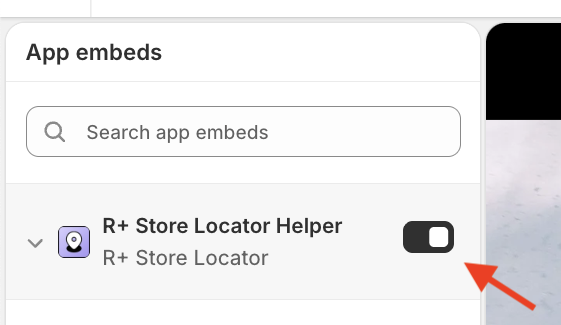
- In the sidebar, click the App embeds icon.
-
Find R+ Store Locator Helper in the list and toggle it on.
- Click Save.
9. Why Isn't the "Find Me" Button Accurately Finding My Location?
This is a known issue on Apple desktop devices. When location access is blocked by the browser, the app falls back to estimate your location using your IP address — which can be significantly less accurate than GPS-based geolocation.
To get a more precise result, allow location access in your browser settings and try again.
Do you need help?
If you have any questions or run into issues, please contact us — we’re happy to help.