
Persistent Cart — Block Settings Overview
This article covers every setting available in the R+ Persistent Cart app embed block. The block is configured directly from your Shopify theme editor under App Embeds. All changes take effect immediately after saving — no code editing required.
Cart Behavior
These settings control how the cart responds when a customer logs in or out of your store.
Cart update behavior
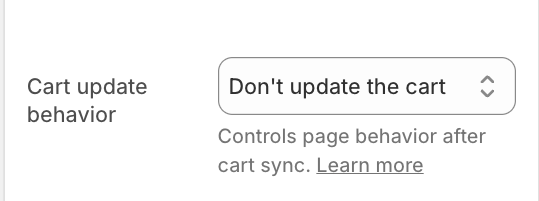
This setting controls how the storefront shows the new cart after it is updated during a session change. There are four options:
- Reload page: The page refreshes fully after the cart is updated. This is the most reliable option and works with any theme. The customer may see a brief page reload.
- Update cart UI (only supported themes): The cart drawer, cart page and cart counter update in place, without a page reload. This option only works with themes on the supported list. Choose your theme in the Theme field that appears below.
- Update cart UI (custom events): Use this for custom or unsupported themes whose cart refreshes through JavaScript events. After the cart is updated, the app dispatches the events you enter in the fields below, and your theme re-renders the cart.
- Don't update the cart: The app updates the cart in the background and leaves the page as it is. The new cart appears on the next page load or the next time the cart is opened. Choose this if your theme handles cart updates on its own.
Default: Don’t reload.
Theme (visible only with “Update cart UI (only supported themes)”)
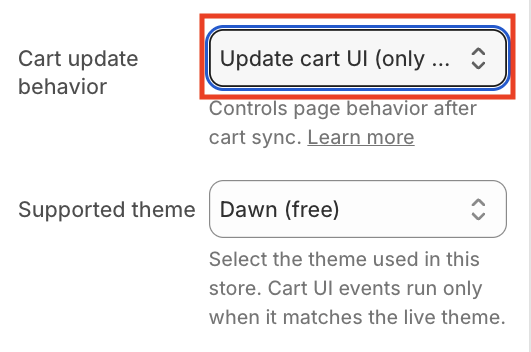
Select the theme your store uses so the app knows how to refresh its cart UI.
- Free themes: Atelier, Colorblock, Craft, Crave, Dawn, Dwell, Fabric, Heritage, Horizon, Origin, Pitch, Publisher, Refresh, Ride, Rise, Ritual, Savor, Sense, Spotlight, Studio, Taste, Tinker, Trade, Vessel.
- Paid themes: Esselle, Impulse, Prestige, Purity, Wildpeak.
Note: The Update Cart UI feature may not work as expected if your store is using an outdated version of the selected theme.
If your theme isn’t listed, use Refresh (custom events) or Reload instead.
Default: Dawn.
Cart event (visible only with “Refresh (custom events)”)
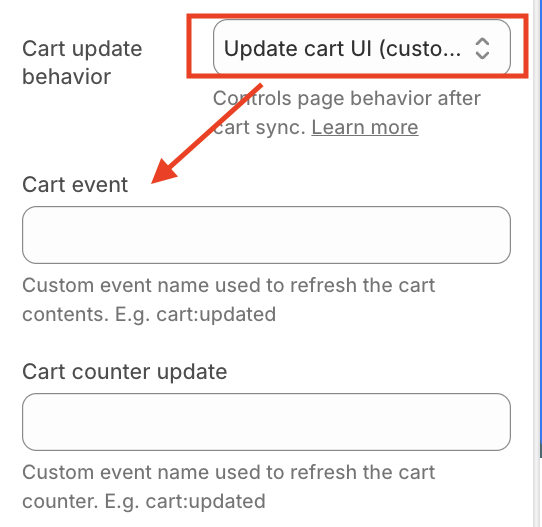
Enter the name of the event your theme listens for to re-render the cart drawer or cart page.
Cart counter event (visible only with “Refresh (custom events)”)
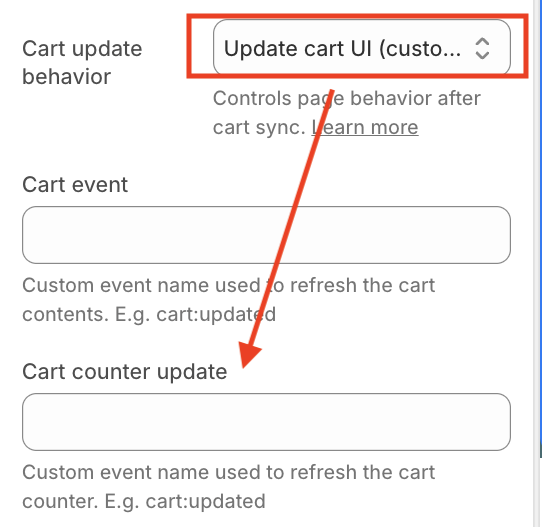
Enter the name of the event your theme listens for to update the cart item count in the header.
Merge guest cart on login

Determines what happens to the items that the customer added before logging in. Set to "Merge" to combine their guest cart with their saved account cart. Set to "Don't merge" to apply one of the more specific login behaviors described below.
Default: Don't merge.
Login behavior (visible only when Merge is disabled)

Controls what happens to the current cart when a customer logs in and their saved account cart is empty. "Replace" means the empty account cart takes over — the guest cart is cleared, though it may be restored on logout. "Don't replace" means the guest cart overrides the empty account cart — the customer effectively picks up where they left off as a guest.
Default: Don't replace.
Logout behavior

Defines what the customer sees in their cart after signing out. Three options are available: "Clear cart" empties the cart entirely on logout. "Restore guest cart" reverts the cart to whatever the customer had before they logged in. "Continue with synced cart" leaves the cart exactly as it was during the logged-in session.
Default: Clear cart.
Toast Notification
A toast is a small pop-up message shown to customers when their cart is restored or updated. This section controls whether it appears and how it looks.
Show toast notification on cart update
Toggles the toast on or off. When hidden, none of the toast styling or animation settings have any effect.
Preview toast in theme editor
Shows or hides toast notification from theme editor. Toggle it on when you need to style the toast.
Close toast notification
Controls how the toast can be dismissed. "Manually" shows a close button that the customer must click. "Auto" dismisses the toast after a set duration. "Both" allows either method. Default: Both.
Toast Text
The message displayed inside the toast. Supports rich text formatting. Default: "Your cart has been restored."
Toast Appearance
Background color — The fill color of the toast card. Default: white (#fff).
Text color — The color of the message text. Default: black (#000).
Close button color — The color of the × icon used to dismiss the toast. Default: black (#000).
Border radius — Rounds the corners of the toast card, from 0 px (sharp corners) to 30 px (pill shape). Default: 4 px.
Text Font Size — Separate controls for desktop (6–36 px) and mobile (6–36 px). Default: 16 px on both.
Text Font Weight — Separate controls for desktop and mobile, ranging from 100 (thin) to 700 (bold) in steps of 100. Default: 400 (regular).
Text Alignment — Separate controls for desktop and mobile. Options: Start, Center, End. Default: Center on both.
Toast Animation
Toast Effect The direction from which the toast slides into view. Separate settings for desktop and mobile. Options: Show from start (left), Show from end (right), Show from top, Show from bottom. Default: Show from top.
Toast Duration How long the toast stays visible before auto-closing, when auto-dismiss is enabled. Range: 1–15 seconds. Default: 3 seconds.
Toast Position
The toast can be placed anywhere on screen using a combination of vertical and horizontal position settings, each configurable separately for desktop and mobile.
Vertical position — Top, Center, or Bottom. Default: Top.
Horizontal position — Start, Center, or End. Default: Center.
Spacing
These settings control the space around and inside the toast card.
Outer Space (margins)
The gap between the toast and the edges of the screen. Configured separately for desktop and mobile, with independent controls for top/bottom and start/end margins. Range: 0–100 px in steps of 2. Default: 24 px on all sides.
Padding Desktop Settings
The inner space between the toast content and its border — top, bottom, start, and end sides independently. Range: 0–60 px. Default: 20 px on all sides.
Padding Mobile Settings
The same inner spacing controls as above, applied specifically on mobile viewports. Range: 0–60 px. Default: 20 px on all sides.
Quick Reference
| Setting | Default |
|---|---|
| Cart update behavior | Don’t reload |
| Theme (Refresh mode) | Dawn |
| Cart event / Cart counter event | Empty |
| Merge guest cart on login | Don’t merge |
| Login behavior (if no merge) | Don’t replace |
| Logout behavior | Clear cart |
| Toast notification | Shown |
| Preview toast in theme editor | Off |
| Toast close method | Both |
| Toast text | “Your cart has been restored” |
| Toast duration | 3 s |
| Toast entry direction | From top (desktop & mobile) |
| Toast vertical position | Top |
| Toast horizontal position | Center |
| Background color | #fff |
| Text color | #000 |
| Close button color | #000 |
| Font size | 16 px |
| Font weight | 400 |
| Border radius | 4 px |
| Outer margins | 24 px |
| Padding | 20 px |
Do you need help?
If you have any questions or run into issues, please contact us — we’re happy to help.