
How to add Shop Location
Intro: Adding Shopify native locations is useful when using the Store Availability block. You can connect native Shopify locations with your app’s custom locations to display them in the Store Availability block.
By default, the Store Availability block shows only Shopify native locations, since they are directly connected to product inventory. After connecting locations, the block will display your custom location information while using stock data from the linked Shopify native locations. This allows customers to see accurate availability along with your custom location details.
Add a Shopify Native Location
- Go to Settings in your Shopify admin → Locations.
- Click Add location.
- Enter the Name and Address of your location.
-
Enable Physical storefront.

-
Click Save.
After that, continue with the following steps:
-
Enable Fulfillment → Pickup in store. This allows the Store Availability block to display your location.
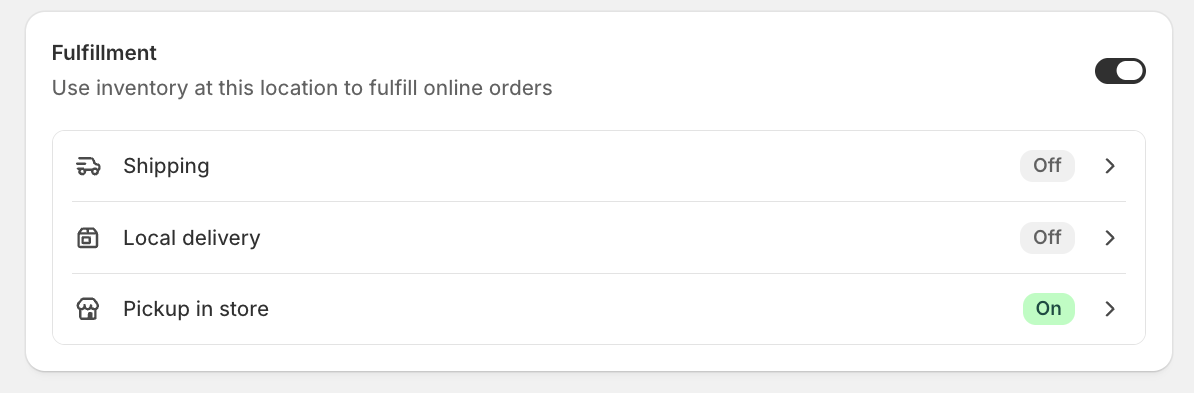
- Click Save again to apply the changes.
Connect a Shopify Native Location with an App Custom Location
- Go to R+ Store Locator App → Locations.
- Click the Edit button on the location you want to connect.
- Find the Shop Location field.
- Select the desired Shopify native location from the dropdown.
- Click Save.
Once connected, the Store Availability block will display your custom location details along with the stock information from the linked Shopify location.
Do you need help?
If you have any questions or run into issues, please contact us — we’re happy to help.