
Store Availability block Setup Guide
Intro: Show customers where a product is available for pickup at nearby locations. The Store Availability block displays a list of stores that have the item in stock, along with pickup details such as location, availability status, and estimated pickup time. This helps customers quickly find and collect products from the most convenient store.
When used with Custom Locations and the Store Locator block, it enhances the shopping experience by letting shoppers know exactly where a product is available and how many is in stock.
Shopify themes are divided into Online Store 2.0 (new) and Legacy (older) themes. If you're using a Legacy theme, you won't be able to add app blocks through the theme customiser.
Add the Store Availability Block to Your Product Page for Online Store 2.0 (new) themes
Before using the Store Availability functionality, you need to add the block to your product page and optionally configure its appearance.
Step 1: Add the Store Availability block to your PDP
-
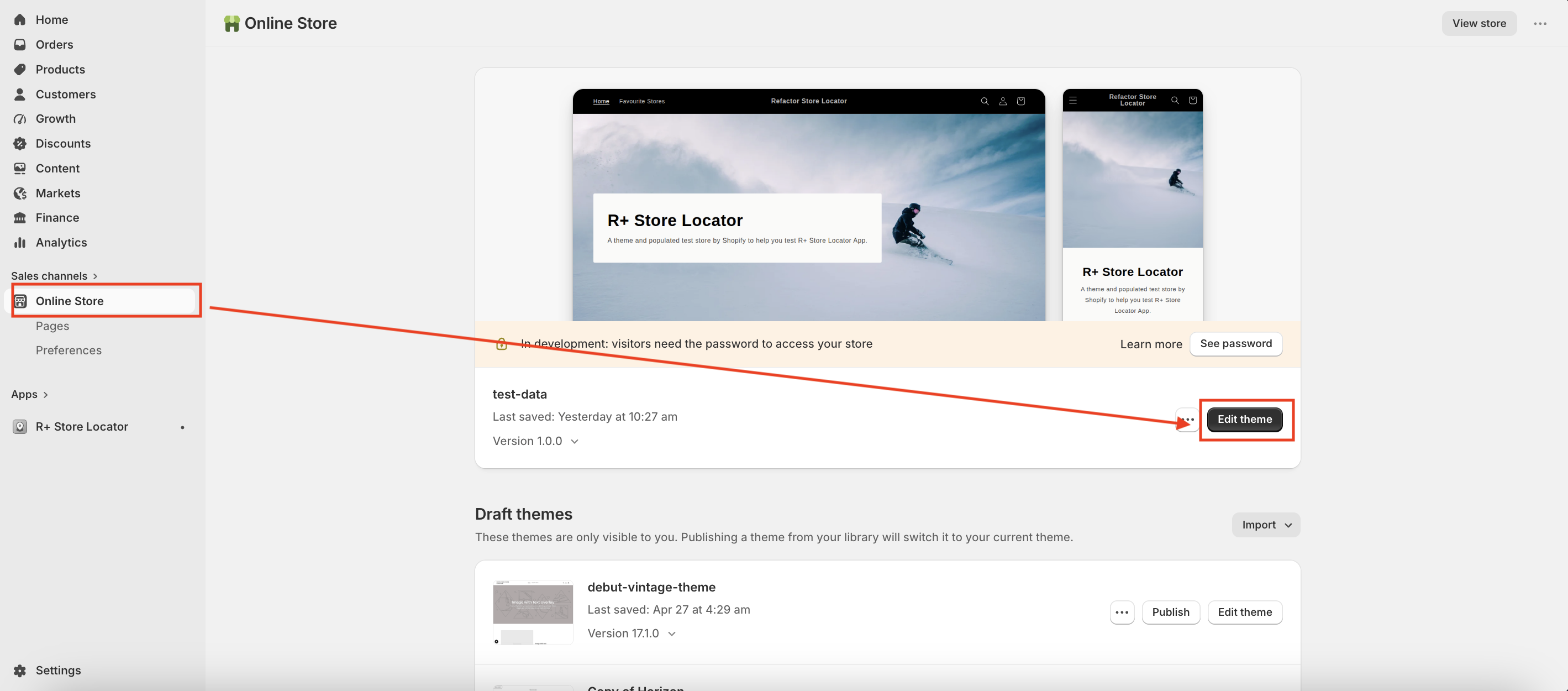
Go to Online Store → Themes, and click Edit theme on your active theme.
-
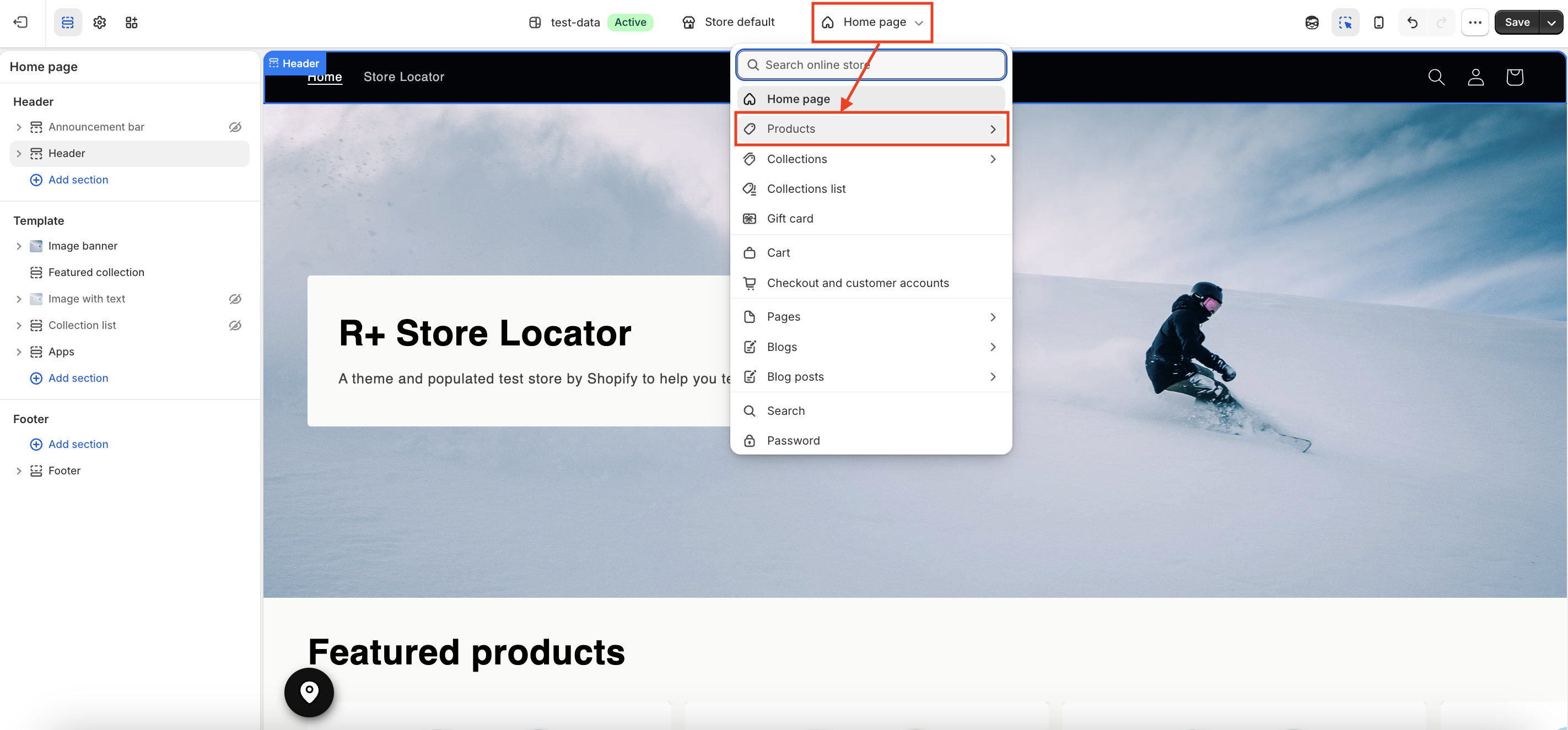
Open the page selector at the top, then go to Products and choose your Product template.
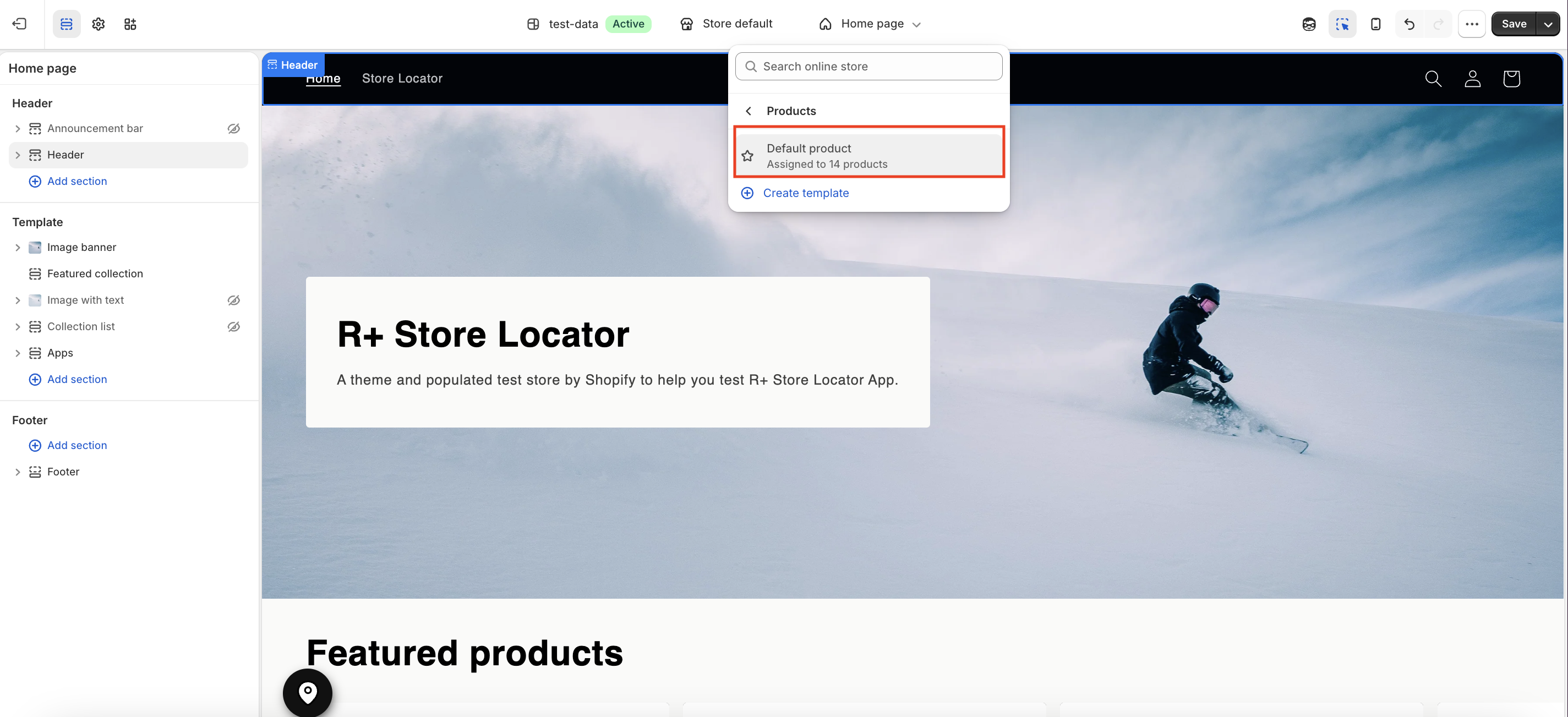
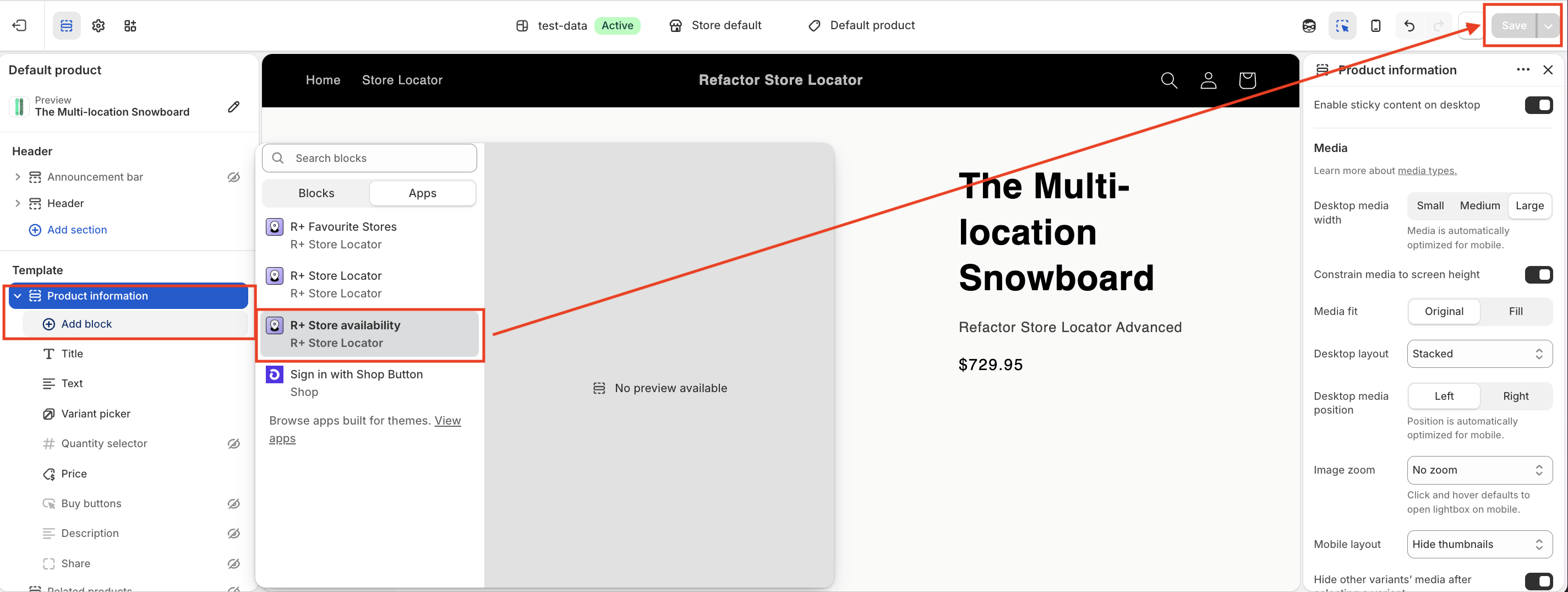
- On the Product page, open the Main product section (for example, Product Information).
- Click Add block.
- In the modal window, open the Apps section and select R+ Store Availability.
- Choose the desired position of the block (above or below other blocks).
-
Click Save to apply your changes.
Add the Store Availability Block to Your Product Page for Legacy (older) themes
To support Legacy themes, we provide the Store Availability Embed block, which is added to the product page and can be opened using a floating button.
To enable the app for your theme:
-
Select the theme you want to apply and click Edit theme.
- In the customizer, go to App Embeds (the puzzle piece icon in the left sidebar).
- Enable the R+ Availability Embed block.
-
Click Save in the upper-right corner. The floating button will appear on the Product Page if the product has availability.
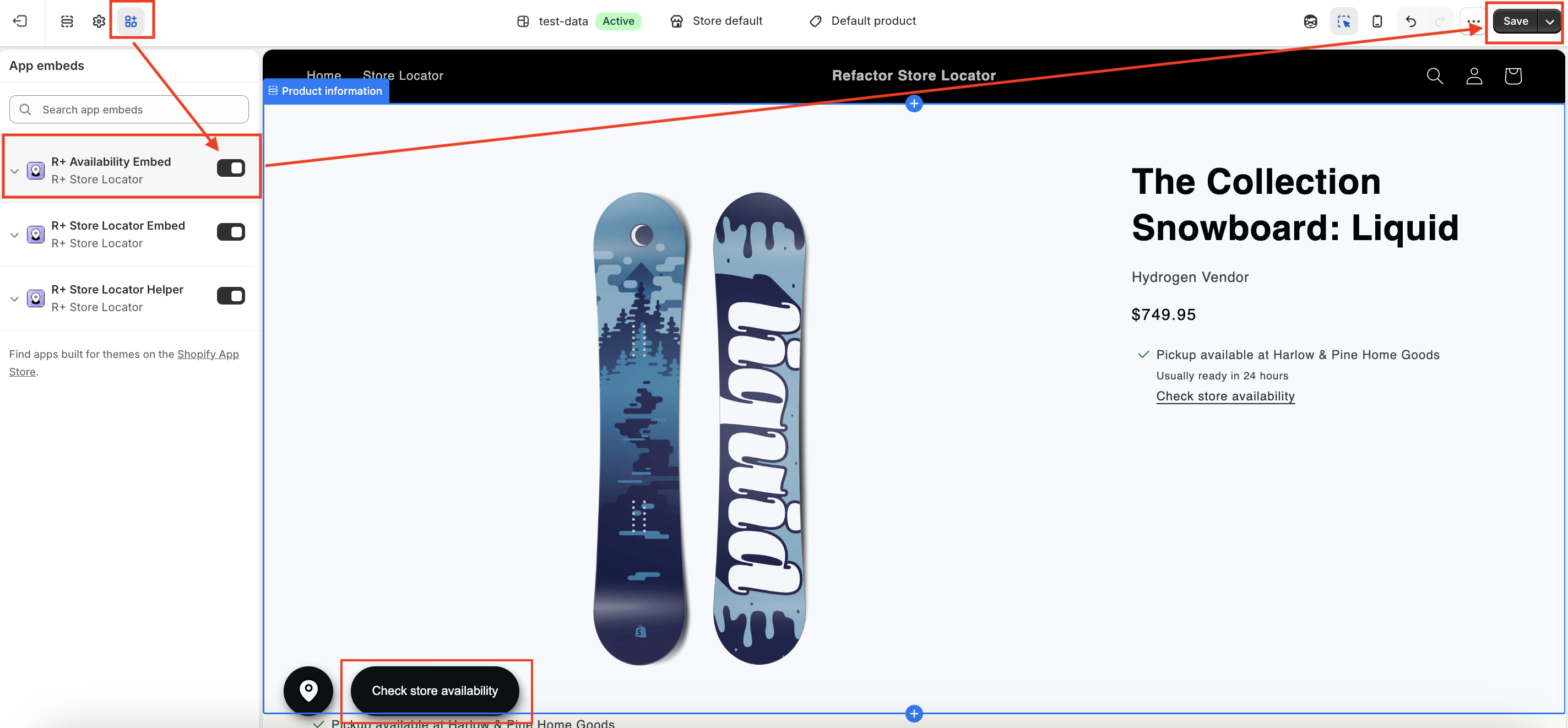
You’ll also find customisation settings for the floating button and modal, allowing you to adjust the appearance of the Store Availability feature to match your store’s design.
Step 2: Customise the Store Availability Block
After selecting the R+ Store Availability block, the customisation settings will open. Here you can configure various options:
Distance Options — Comma-separated list of distance values, e.g. 10,25,50,100.
Distance Unit — Select kilometers or miles.
Button Settings
Change the button text (default: "Check store availability") and choose a button style that matches your store's design.
Button Style Settings (Desktop and Mobile)
Customise the font style, size, and color separately for desktop and mobile devices.
Modal Settings
- Low stock limit — Set the stock quantity at which the Low Stock indicator will appear.
- Distance limit (km) — Set the search radius for the Stores Nearby feature, allowing customers to find nearby stores.
Modal Style Settings (Desktop and Mobile)
Customise the modal appearance, including font color, background color, and border radius.
If you need more advanced styling, you can use custom CSS or apply changes directly in your theme.
Step 3: Add Translations for Your Store Availability Block
To add translations:
- In the theme editor, navigate to R+ Store Availability Block, click the (...) menu at the top right corner.
-
Select Localize.
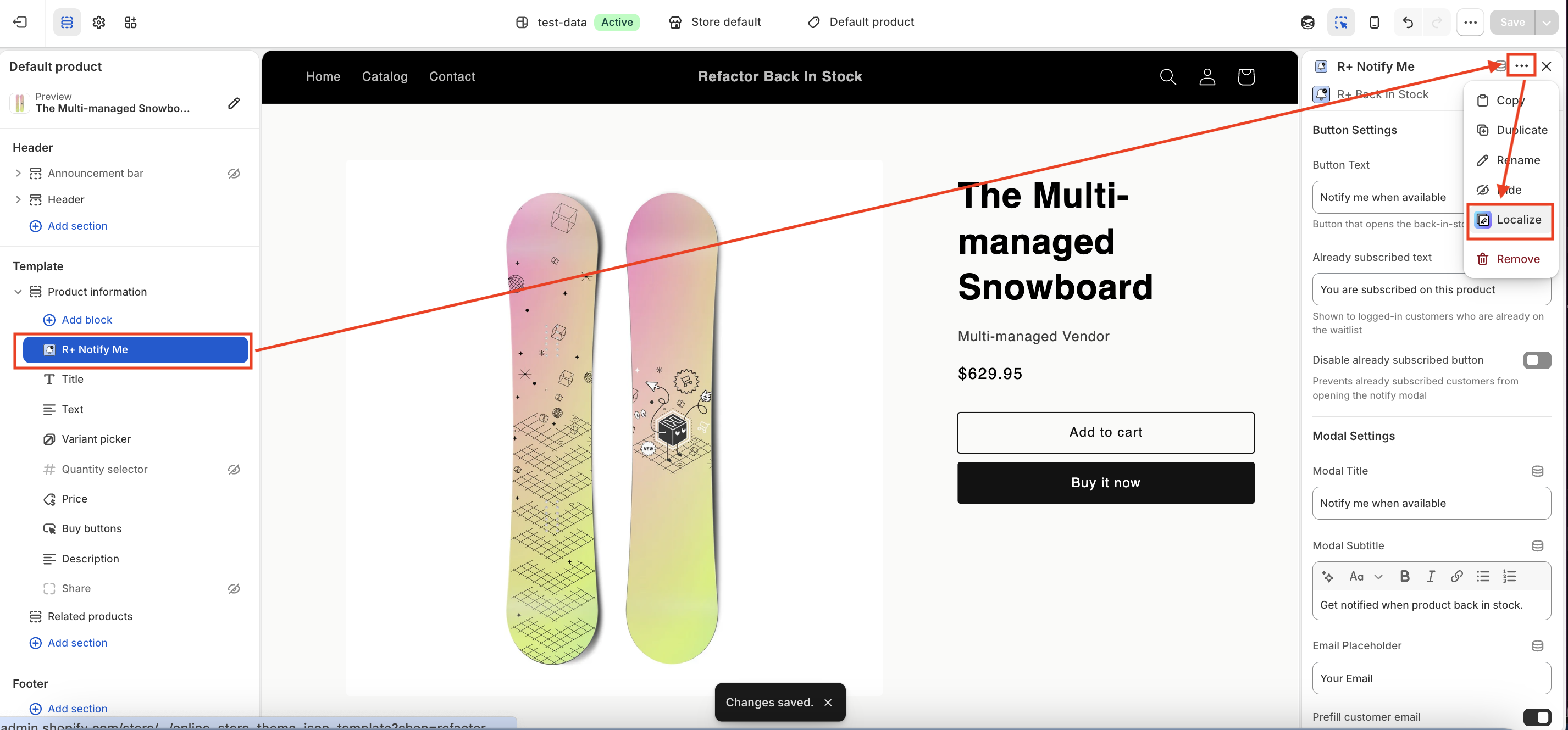
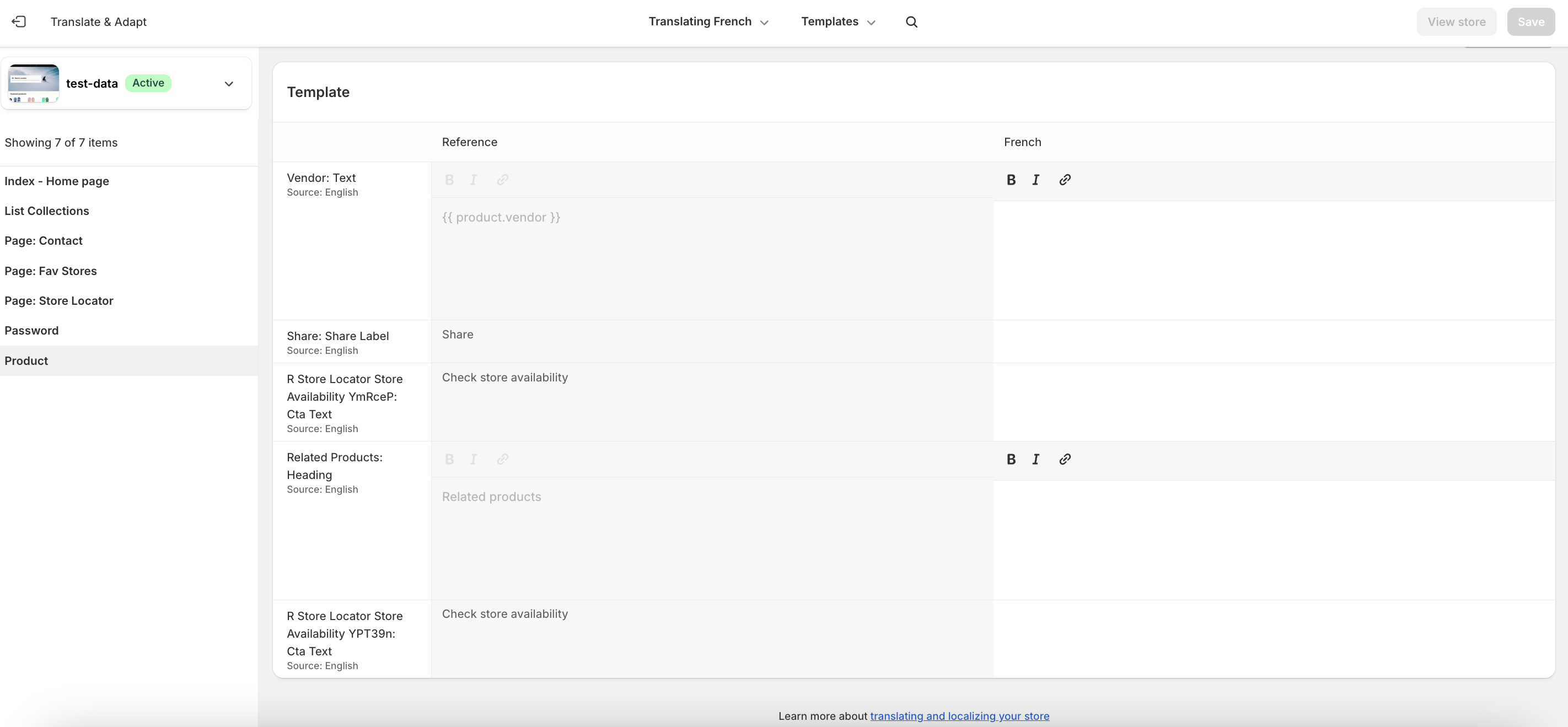
3. You will be redirected to the Translate & Adapt app, where you can edit translations for the languages used in your store.
Do you need help?
If you have any questions or run into issues, please contact us — we’re happy to help.