
Google Maps API Key Setup Guide
Intro: To display a Google map in your Store Locator page, you’ll need to create a Google Maps API key and add it to your app settings. This guide walks you through the process step by step.
Once the API key is created, connect it to the Store Locator app so that Google Maps can be displayed on your website.
About Google Maps Billing
Google Maps services are provided directly by Google, not by our app. Google Maps uses a pay-as-you-go billing model, but each project receives $300 in free credit. This free tier usually covers tens of thousands of map loads, which is enough for most small to medium websites. Billing is required to enable the APIs, but no charges apply unless usage exceeds the free credit.
However, Google requires billing details to be added in order to use their maps — even if you never exceed the free credit.
👉 If your usage stays below Google’s free allowance, you will not be charged.
Optional: Monitor or Limit Usage
After your key is set up, you may also want to:
- Set up billing alerts to receive email notifications about map usage
- Set usage quotas to prevent exceeding the free monthly limit
Default Map Provider
We use OpenStreetMap as a free alternative to Google Maps. It works by default. However, for a website user, Google Maps has clear advantages over OpenStreetMap:
- Familiar and trusted — most users already know Google Maps, so it feels intuitive and reliable.
- Better search — addresses and places are easier to find, with fewer errors.
- Richer place information — business details, photos, ratings, and opening hours help users decide faster.
- Clearer navigation — more accurate routes, ETAs, and traffic awareness.
- More reliable results — fewer missing or incorrect locations, reducing confusion.
Result: users find places faster, trust the map more, and are less likely to leave the site.
Quickstart (Recommended)
Google provides a guided setup wizard that creates your API key automatically.
👉 Get a Google Maps API key (Google’s official setup wizard)
⚠️ Important:
Due to Google limitations, this wizard can only be used once per Google account.
If you have already created a Google Maps key before, the wizard may not complete successfully.
If that happens, follow the manual steps below.
Creating Your Google Maps API Key (Manual Setup)
Before you can start using Google Maps Platform, you need to create a Google Cloud Platform project and attach a billing account to it.
Step 1: Register in Google Cloud Platform
You must be signed in to a Google account. Sign in to the account you want to use.
👉 Make sure you use the correct Google account, as you may need it to manage billing or settings later.
Step 2: Enable Google Maps Platform Billing
Open the Google Maps Platform dashboard. Select the menu button on the top left corner of the page and go to Billing.

If this is the first billing account that you're setting up, you will see an Add billing account button. Go ahead and click it. You will be automatically directed to the Google Cloud Platform free trial sign-up page.

To start your free trial, simply fill out the form. Select your country, review and accept the free trials Terms of Service, and then click Agree and Continue.
Next, provide your info and click Start My Free Trial. To create a billing account, a valid credit card is required. No charges will apply as long as your usage stays within the $300 trial credit. Charges may apply after upgrading to a paid account.

Step 3: Create a new project
When prompted to create a project, you will have two options: create a new project or use an existing one. To create a new project, click the project dropdown at the top of the screen, then click New Project.

- Choose a project name, and edit or keep the default project ID
- Select a billing account for this project. If you only have one billing account created, you won't see this option
- Select an organisation under Location if applicable; otherwise, leave it set to No organisation
- Click Create
Step 5: Copy Your API Key
After a short moment, Google will display your new API key. You can always review it under the Keys and credentials tab in your Google Maps Platform.

- Copy the key using the copy icon
-
Go to your Store Locator app and open the Map Provider tab.
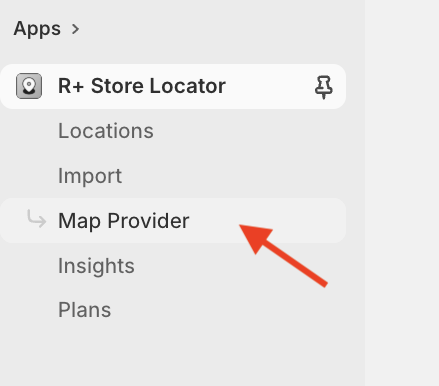
- Paste the key into the Google Maps API Key field
- Click Save map API Key

The app will attempt to automatically verify your key.
Do you need help?
If you have any questions or run into issues, please contact us — we’re happy to help.