
Creating a Mapbox key
R+ Store Locator can render your map using either Google Maps or Mapbox.
Google Maps is the more familiar name, but getting a Google Maps license key working on your own site takes a fair number of steps, and it's the kind of setup that can quietly stop working later on (expired billing, a changed API restriction, and so on).
Mapbox is a good alternative. It's a separate mapping company that focuses specifically on powering maps for websites and apps. Visually its maps are comparable to Google's, the free monthly usage allowance is similar, and the key setup is noticeably simpler.
Creating your key
-
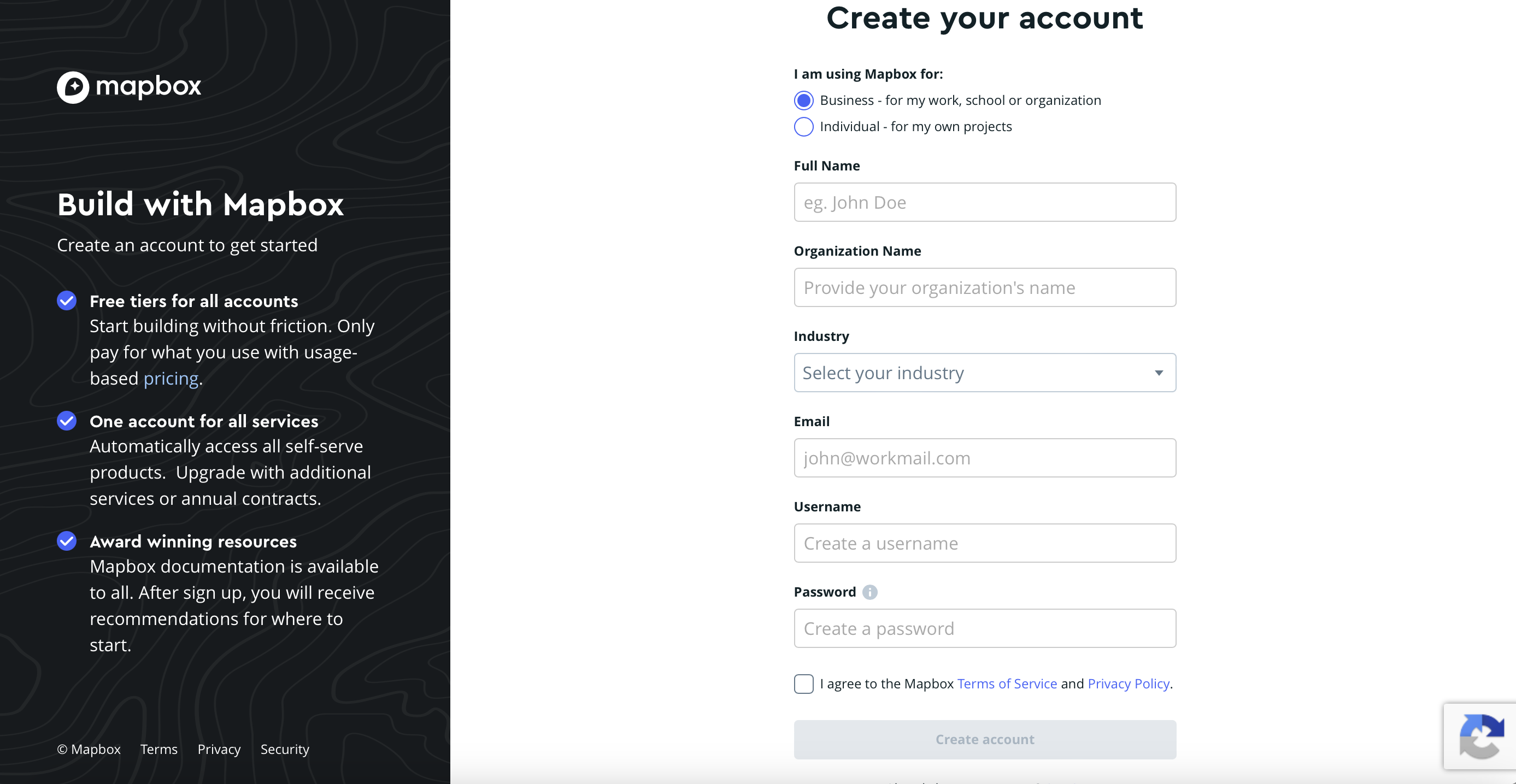
Go to https://account.mapbox.com/auth/signup/ and create a Mapbox account. Pick a username, enter your email, and set a password. Keep these details somewhere safe in case you need to log back in later. Mapbox may ask for billing information at signup. This is only used if your traffic goes past the free tier (roughly 10,000 map loads a month) — most small and mid-sized stores never see a charge. Mapbox still asks up front so that if you do go over, your map keeps working on their pay-as-you-go pricing instead of shutting off.
-
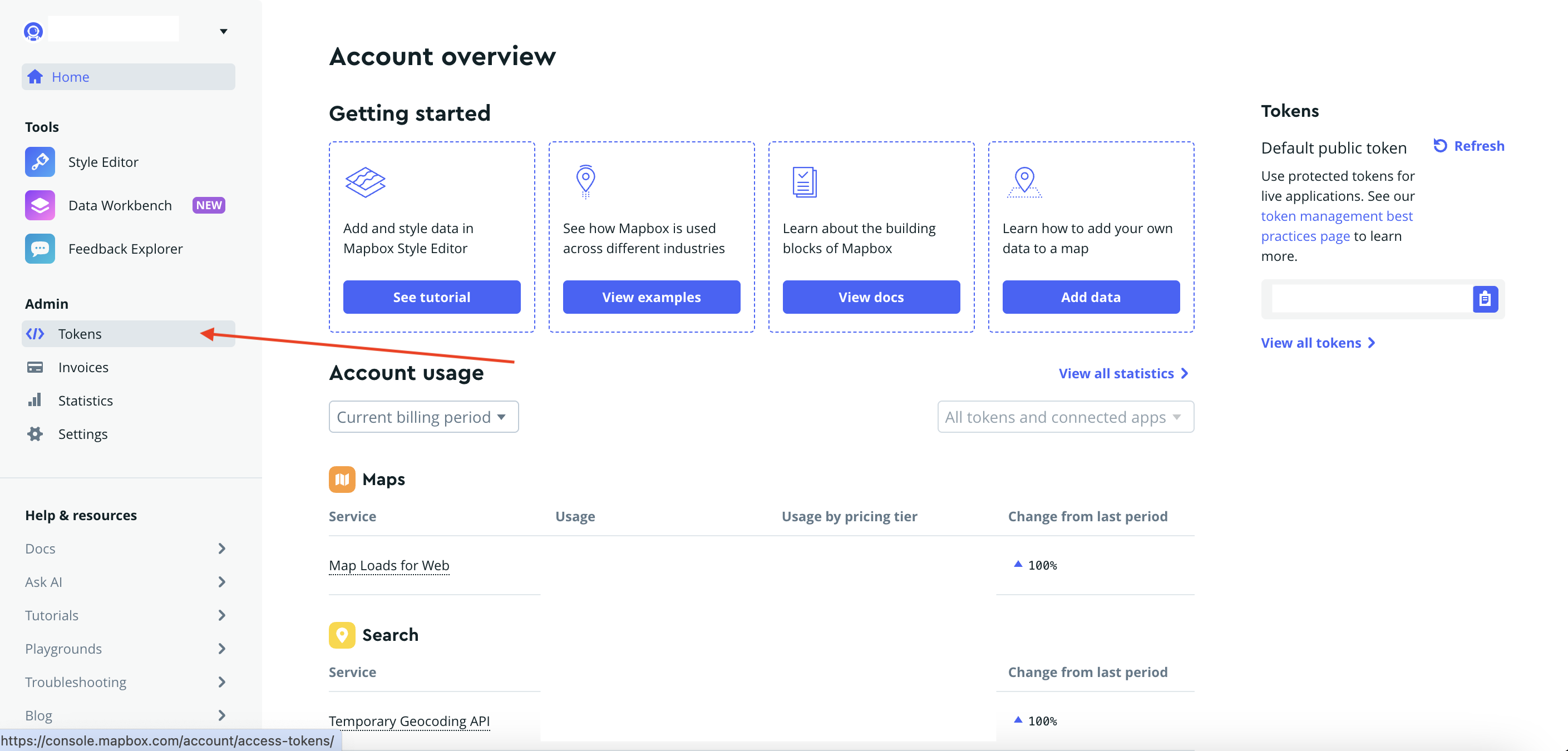
Once your account is created, you'll land on the Account overview page. Open Tokens from the left-hand menu.
-
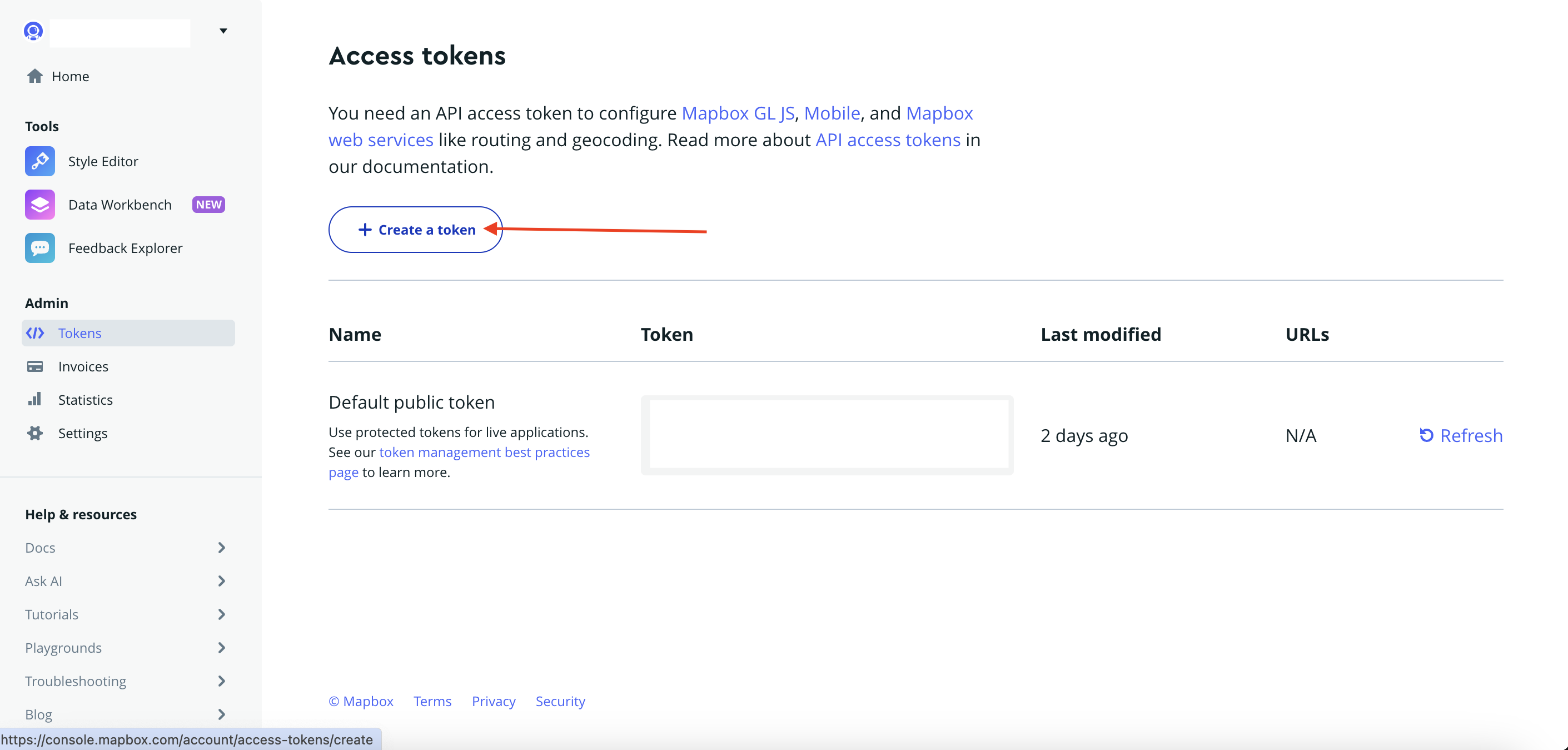
Click Create a token.
-
Give the token a name you'll recognize later, e.g. "R+ Store Locator".
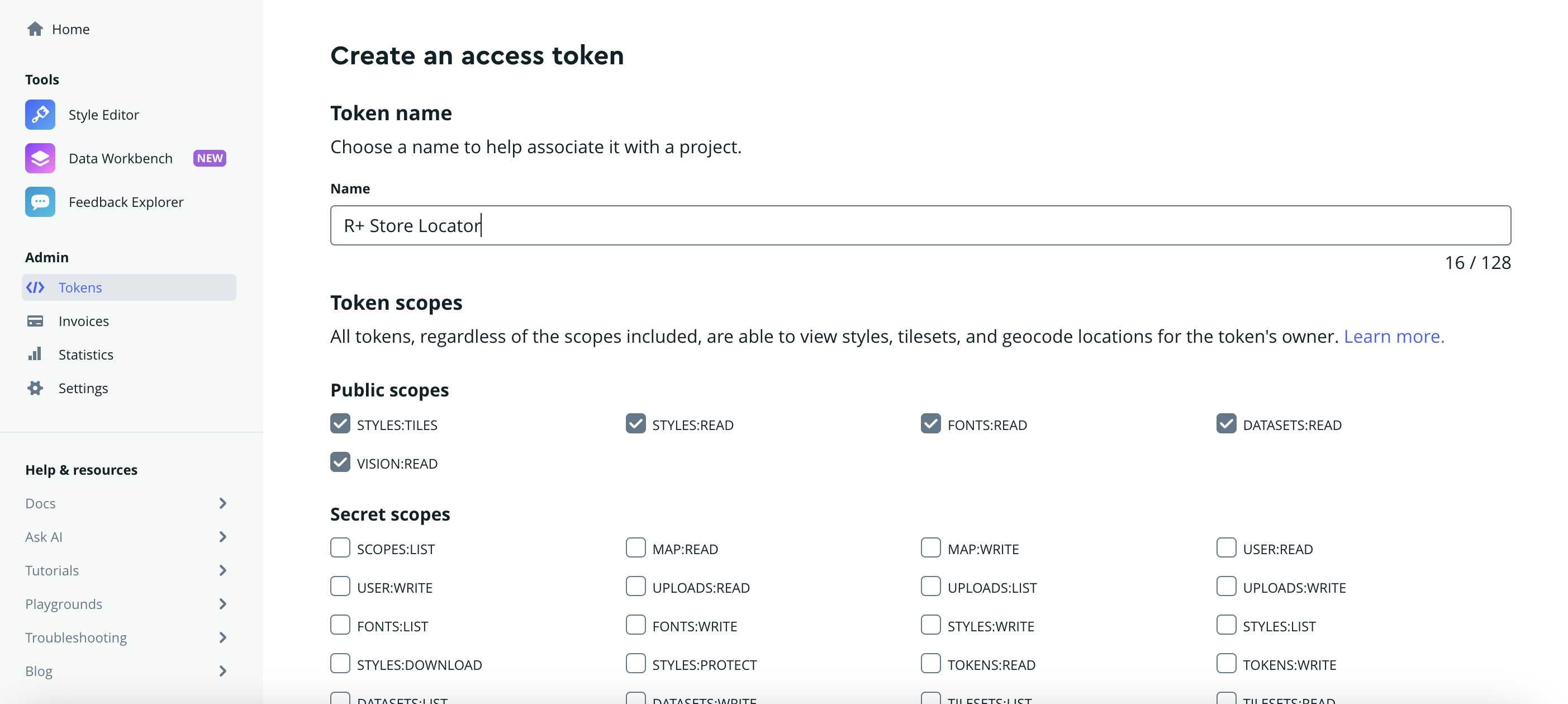
- Leave Token scopes as they are — all the public scopes should already be checked, and the secret scopes should stay unchecked. You don't need to change anything here.
- Under Token restrictions, add your store's domain and click Add URL. A few rules for this field:
- Enter just the domain — no
http://orhttps://, and no path like/pages/stores - Don't use wildcards (
*) - Use lowercase only
- Enter just the domain — no
-
If your store is on Shopify, add both your
myshopify.comdomain (e.g.example.myshopify.com) andshopifypreview.com, in lowercase, in addition to your storefront domain.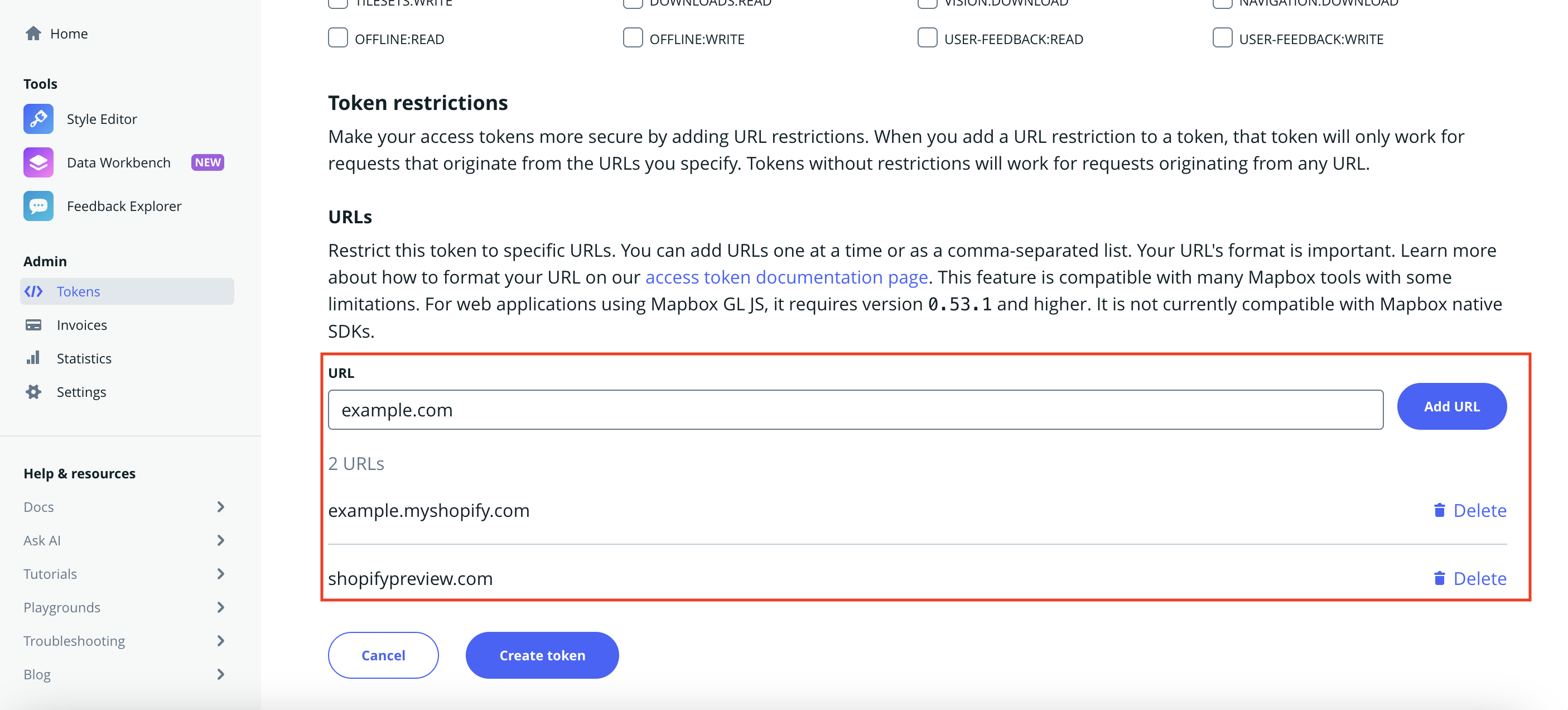
- Once all the relevant domains are added, click Create token.
- You'll be taken to the Access tokens list. Copy the token you just created using the clipboard icon next to it. Double-check you're copying the token you just made, not the Default public token — that one has no URL restriction and shouldn't be used for a live site.
- Paste the token into R+ Store Locator, under the Map provider page in your app admin.
Troubleshooting
Map shows up gray, with no roads or imagery behind the pins
This almost always means Mapbox is rejecting the token. Check the following, in order:
- The token was copied in full, with no missing characters or extra spaces at either end
- You copied a token that starts with
pk.— that's a public token. A token starting withsk.is a secret token and won't work for displaying a map in the browser - The domain in your token's URL restrictions exactly matches what's in your browser's address bar when the map page is open (no
http://prefix, no trailing path, no typos) - The token hasn't been deleted or regenerated in the Mapbox dashboard since you added it
Browser console shows a 403 error when loading the map
A 403 from Mapbox means the token was recognized but rejected — usually one of two reasons:
- The request came from a domain that isn't in the token's URL restriction list
- The token is missing a required scope (public tokens should have all public scopes enabled by default, so this is rare unless scopes were edited manually)
You just added or changed a URL restriction, but it still doesn't work
Browsers and Mapbox's own infrastructure can cache the previous (denied) response for a short time. Try loading the map page in an incognito/private window, or from a different device, before assuming the token itself is the problem.
Map fails to load only through the theme editor or a preview link, but works on the live site
This is usually a URL restriction issue, not a broken token — theme preview and editor URLs often come from a different domain than your live storefront. If you need the map to render in those previews too, add shopifypreview.com and your myshopify.com domain to the token's URL restrictions, as described in step 7 above.
Map area is completely blank, not even gray
This is less common and usually isn't a token problem at all — check your browser console for a Content Security Policy (CSP) error mentioning a blocked image or connection. Some themes or third-party CSP apps restrict which external domains can load resources; if that's the case, *.mapbox.com needs to be allowed.
If none of the above resolves it, generate a brand-new token in Mapbox (rather than editing the existing one) and update it in the app — this rules out any issue with the token itself.
Do you need help?
If you have any questions or run into issues, please contact us — we’re happy to help.