
How to translate the app content
R+ Back in Stock supports full content translation. To translate this content, you need a translation app installed on your Shopify store. This guide walks you through using Shopify Translate & Adapt, a free app provided by Shopify, to add languages and translate all app content.
Step 1: Install Shopify Translate & Adapt
- From your Shopify Admin, go to Settings > Apps
- Click Shopify App Store in the top right corner
- Search for Shopify Translate & Adapt (developed by Shopify) and click Install
If you already have another translation app installed (such as Langify, Weglot etc.), you may use it instead - as long as it supports translating app content via Shopify's translation API. However, this guide covers the Shopify Translate & Adapt workflow specifically.
Step 2: Add a Language to Your Store
- From your Shopify admin, go to Settings > Languages.
- Click Add language.
- Select the language you want to add from the drop-down menu. If you have multiple markets set up, choose which active markets should have access to this language.
- Click Add or Save.
You can add as many languages as needed. Repeat this process for each language you want to translate your store into.
Step 3: Translate Content
With your language added and Shopify Translate & Adapt installed, you're ready to translate the content used by R+ Back in Stock.
-
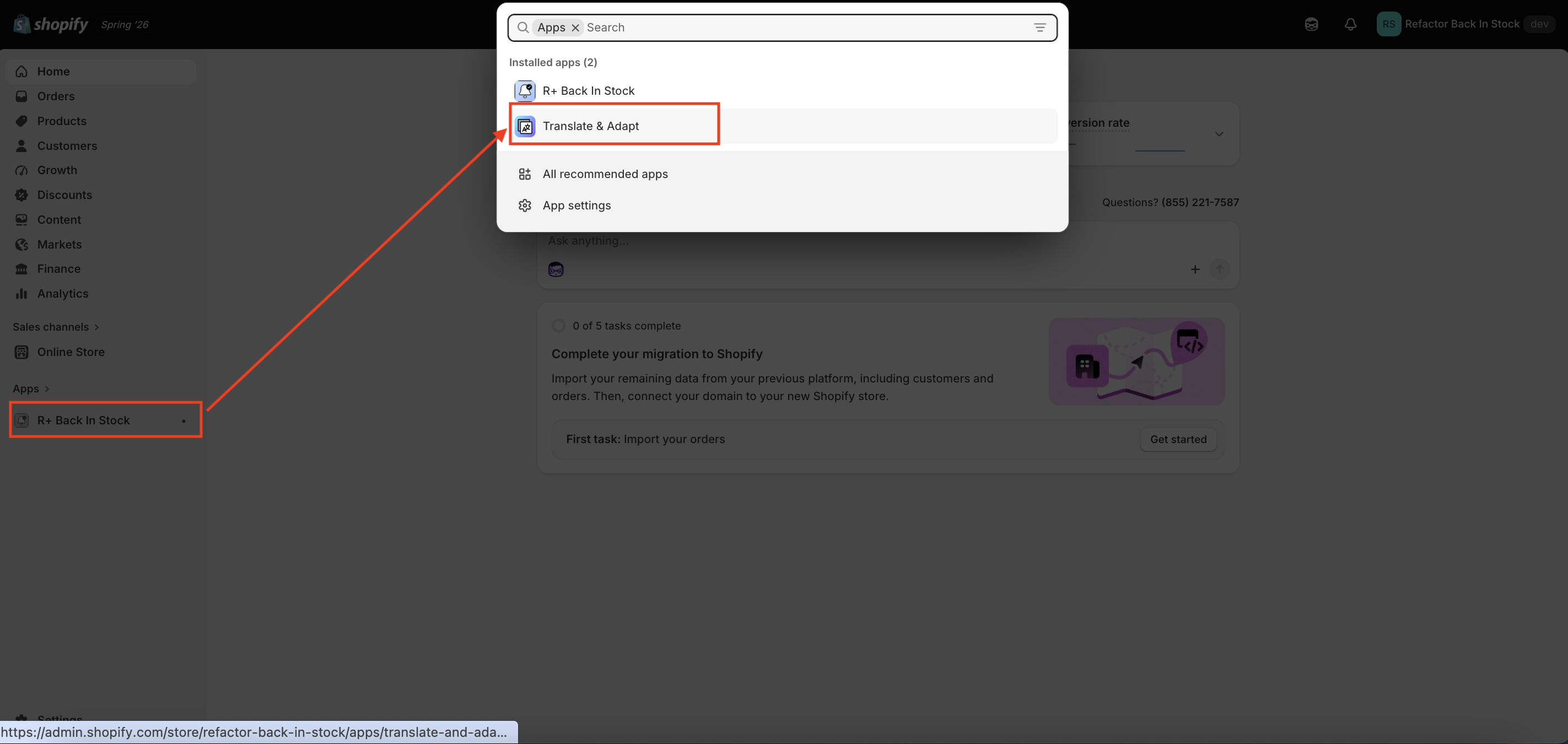
Open the Shopify Translate & Adapt App from your Shopify Admin under Apps
-
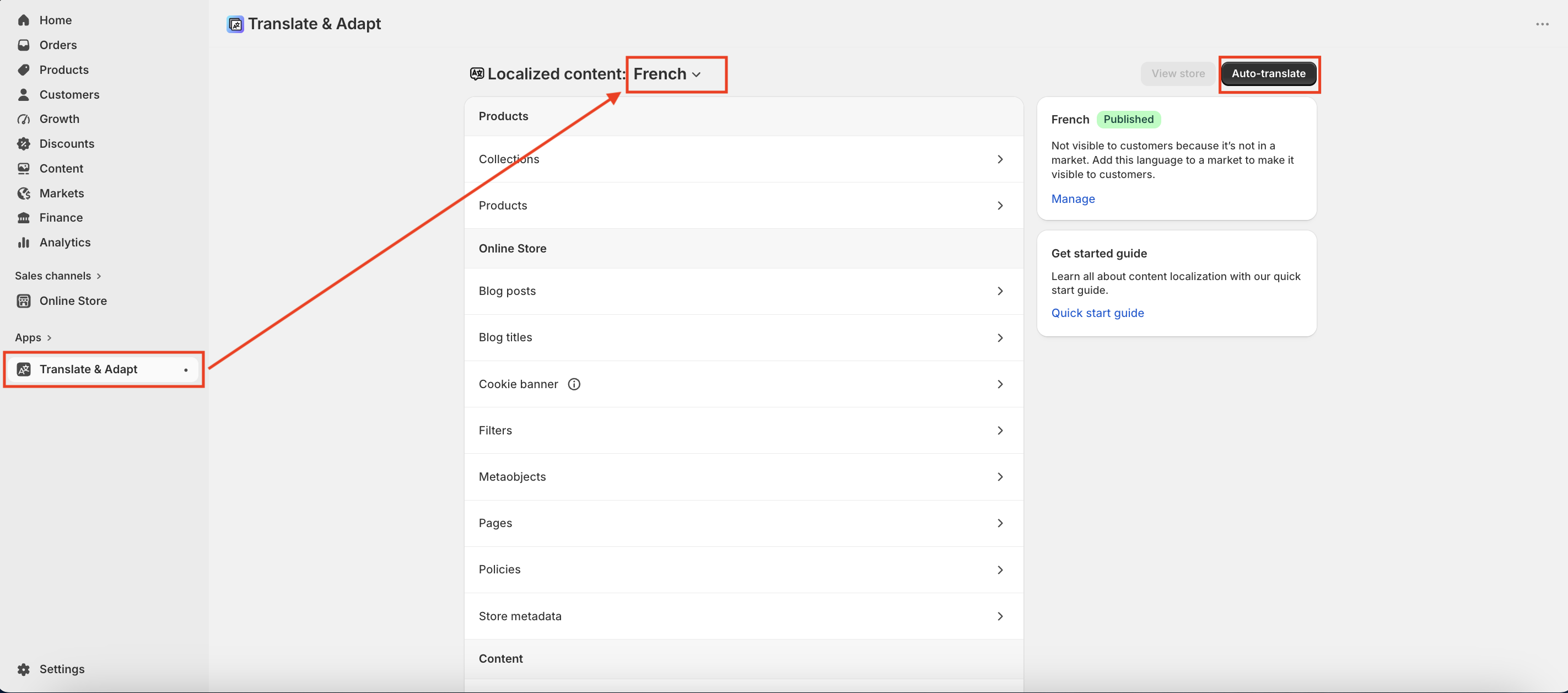
Select the language you want to translate from the drop-down menu at the top-left of the app
-
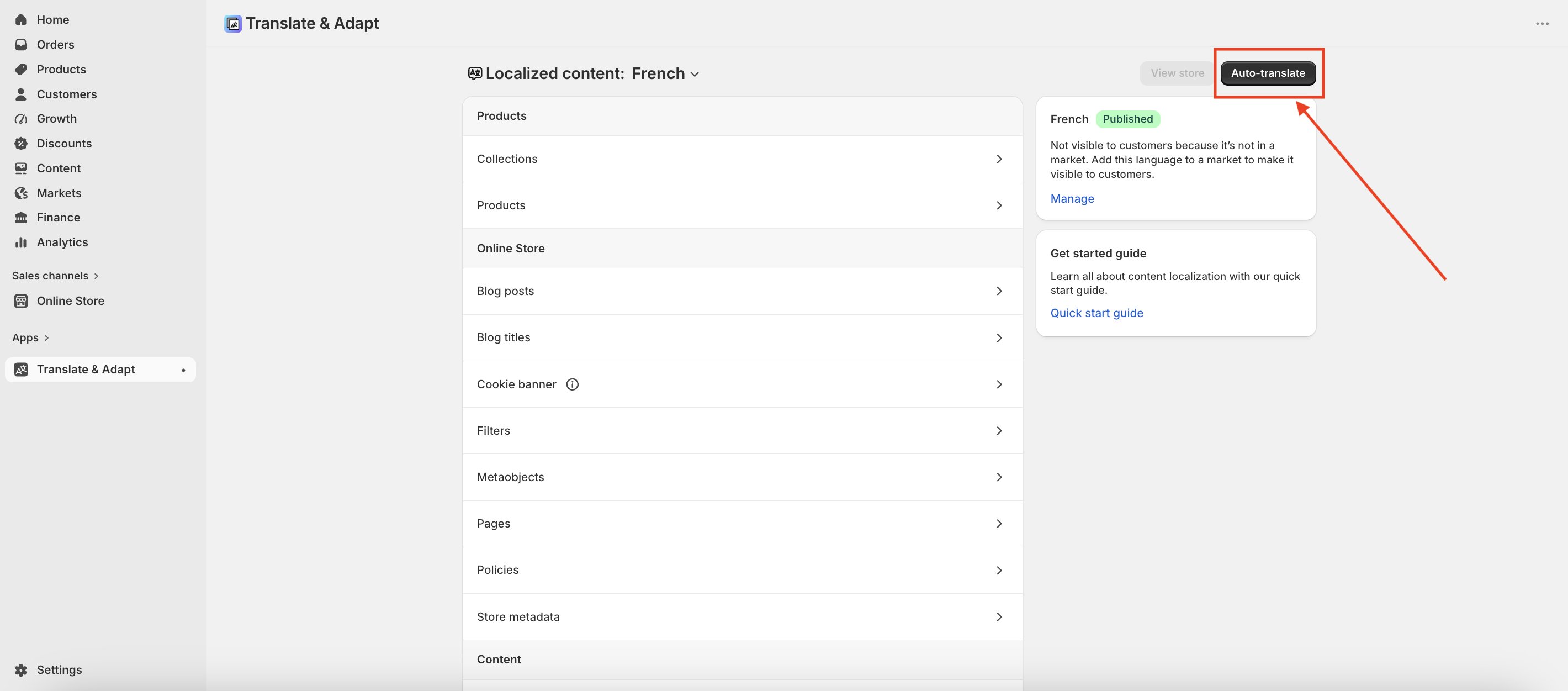
Auto-translate: Click the Auto-translate button at the top right to automatically generate translations. You can use this for up to two languages for free.
-
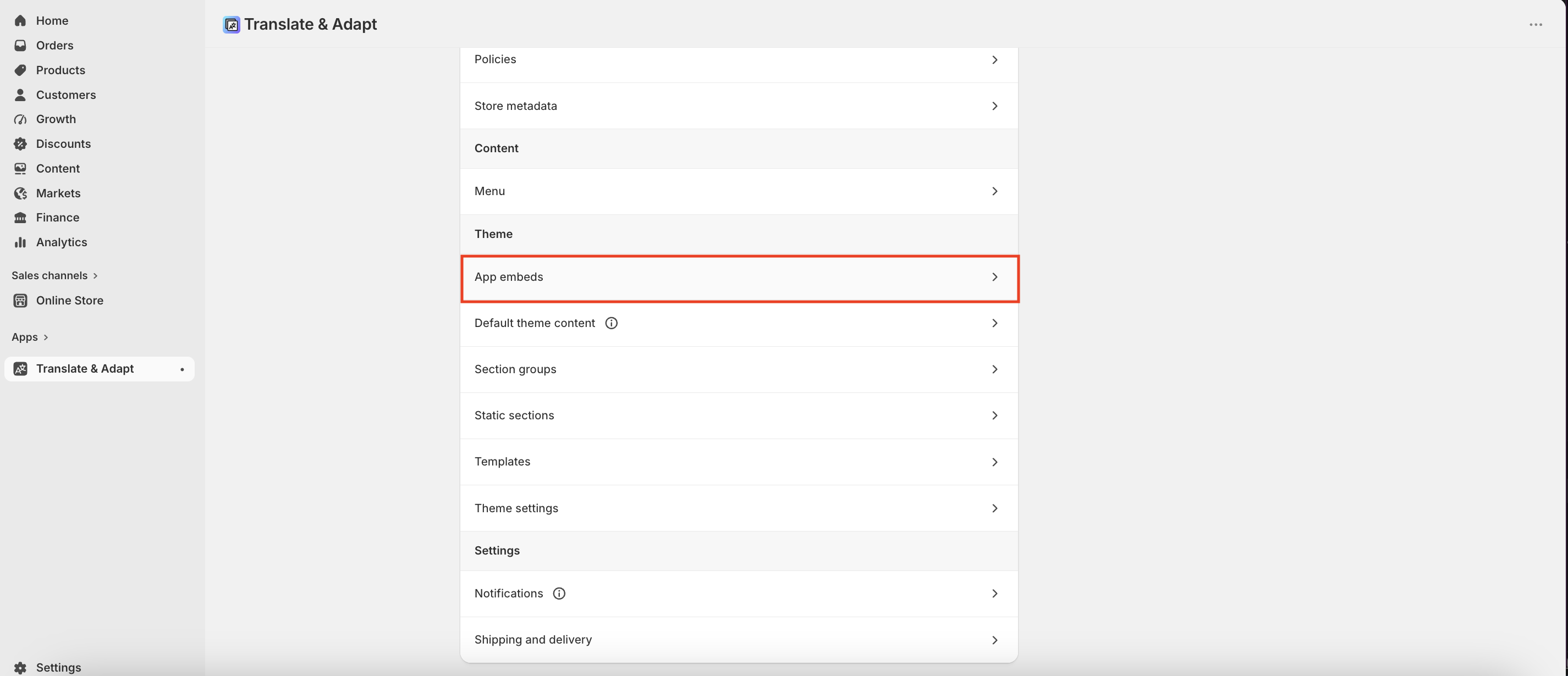
Manual Edits & Review: Use the side-by-side editor to review the translations. Open "App embeds" and navigate to the "R+ Back in Stock". You can type directly into the right column to manually adjust translated content.
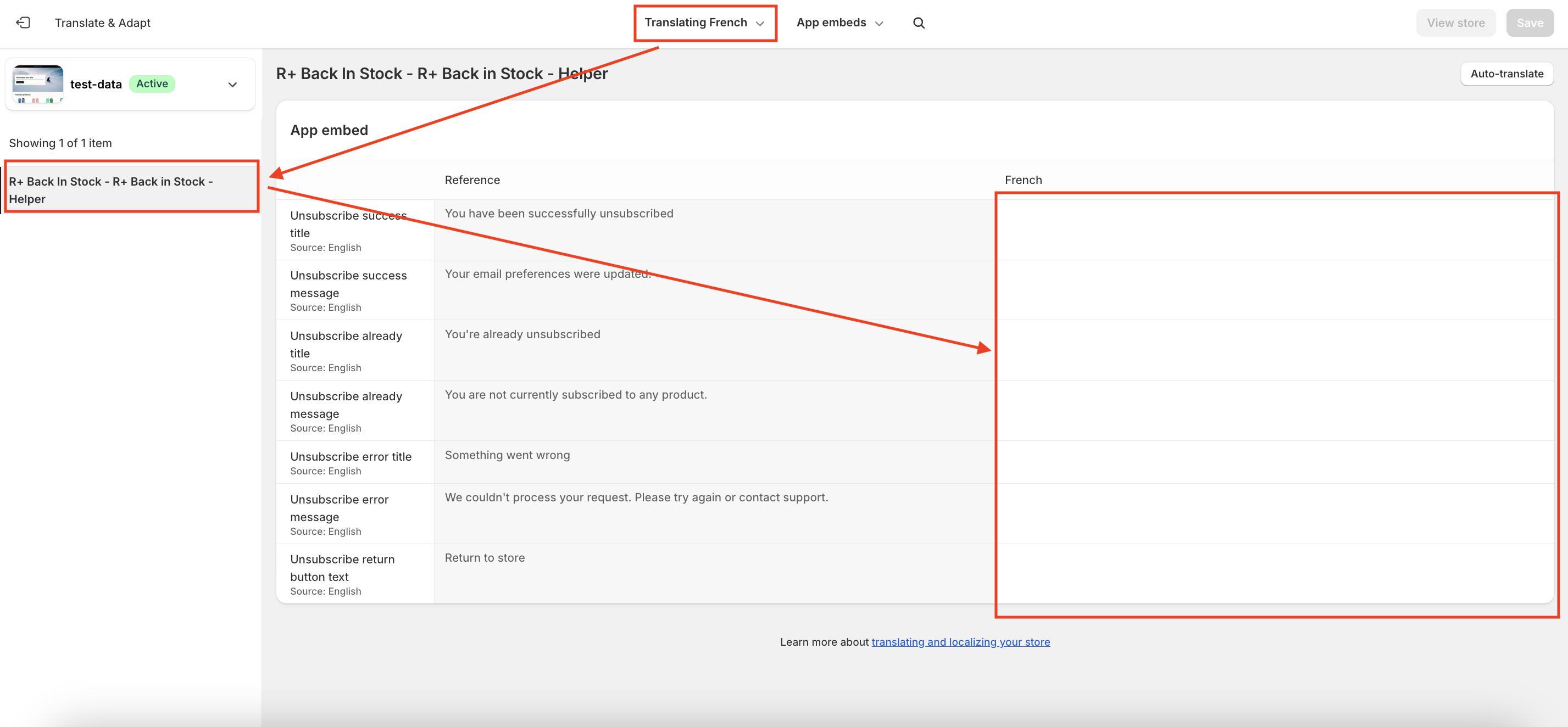
Add Translations for Your Back In Stock Block
To add translations:
- In the theme editor, navigate to R+ Store Availability Block, click the (...) menu at the top right corner.
-
Select Localize.
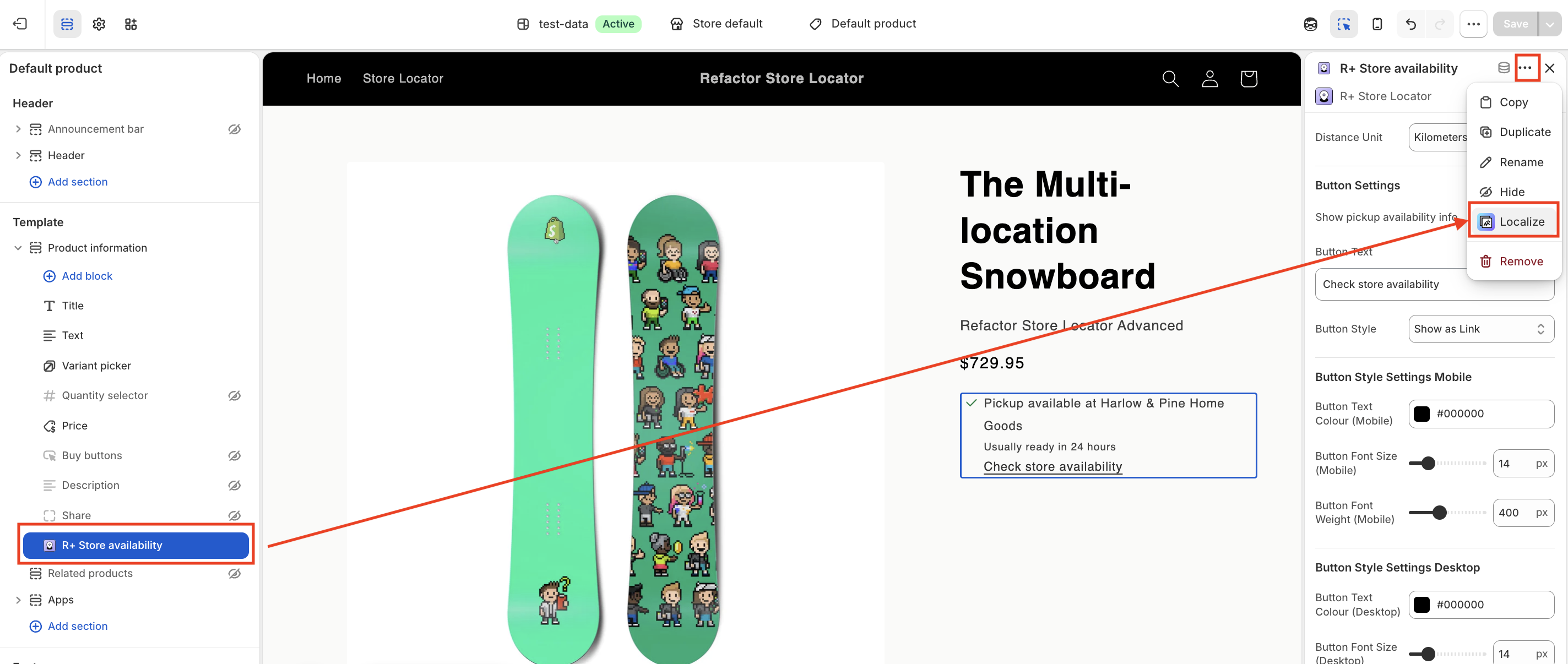
3. You will be redirected to the Translate & Adapt app, where you can edit translations for the languages used in your store.
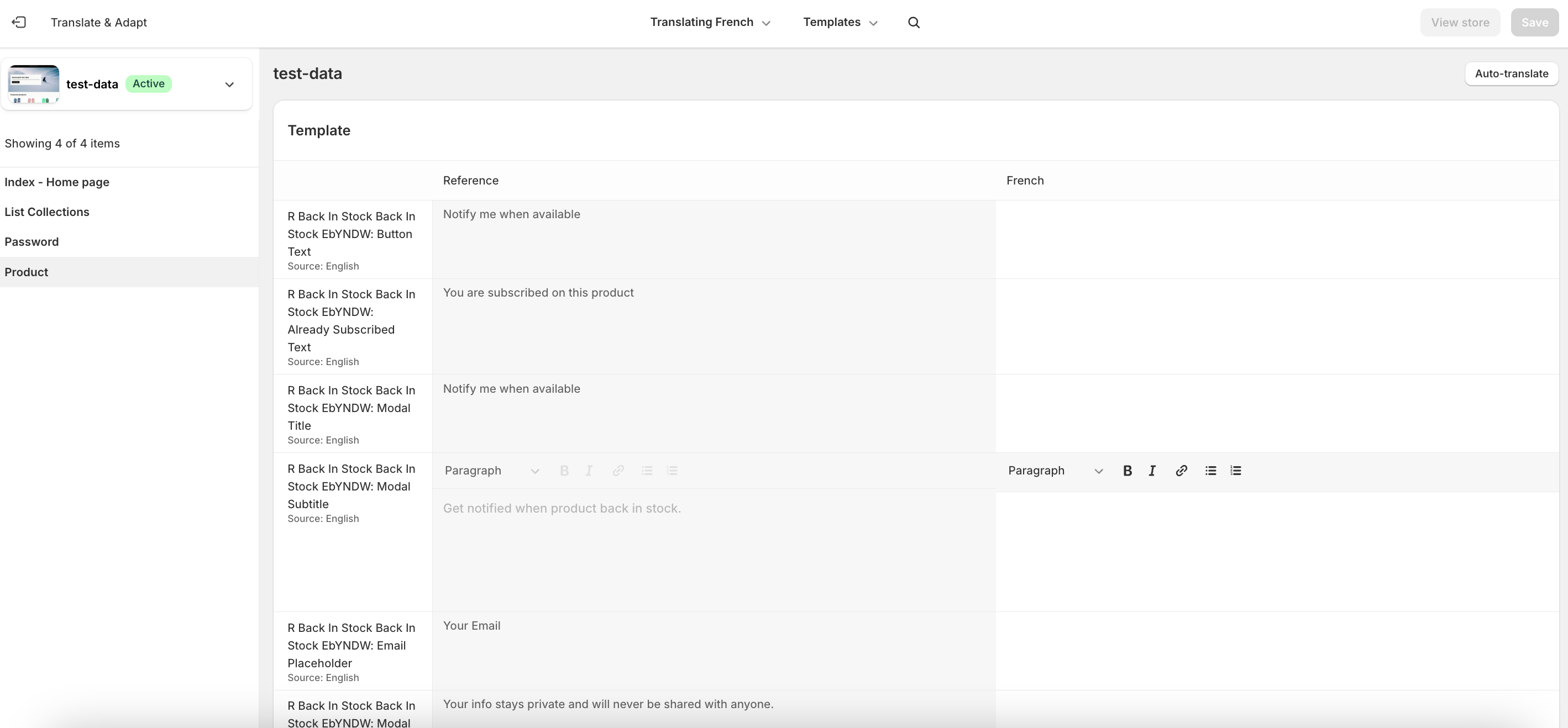
Add Translations for Your Subscribed Products Block
To add translations:
- In the theme editor, navigate to Subscribed Products Page, click the (...) menu at the top right corner.
-
Select Localize.
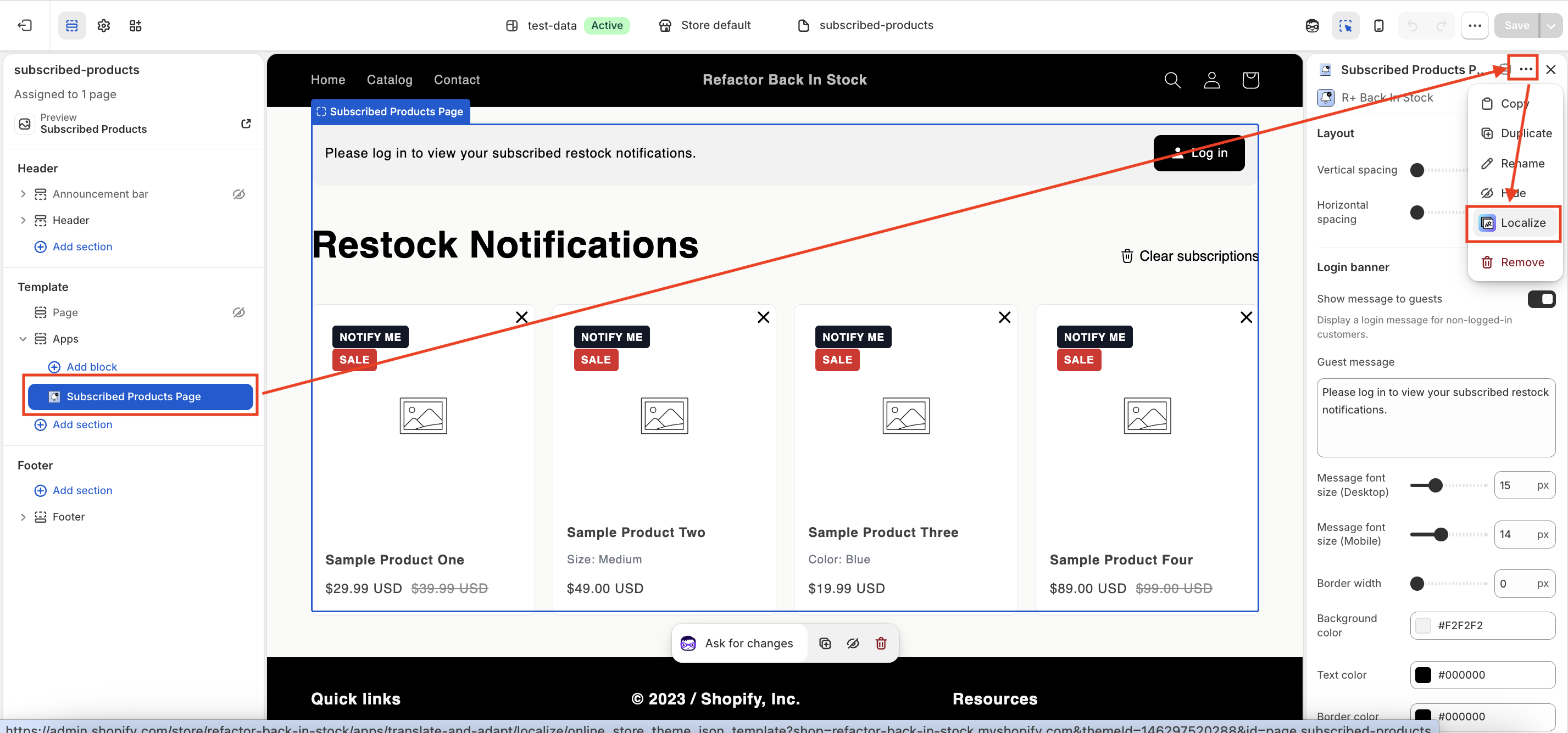
- You will be redirected to the Translate & Adapt app, where you can edit translations for the languages used in your store.
Add Translations for Your Back In Stock Snippet
The snippet uses Shopify's translation system. The default text for each property is read from your theme's locale files, so you need to add the translation strings there.
Where to find locale files
In the code editor, open the Locales folder. You will see files like en.default.json , fr.json , etc.
What to add
Open your default locale file (usually en.default.json ) and find or create a back_in_stock section. Add the following keys inside it:
"back_in_stock": {
  "settings": {
    "button_text": { "default": "Notify me when available" },
    "already_subscribed_text": { "default": "You are subscribed on this product" },
    "modal_title": { "default": "Notify me when available" },
    "modal_subtitle": { "default": "Get notified when product back in stock." },
    "email_placeholder": { "default": "Your Email" },
    "modal_description": { "default": "Your info stays private and will never be shared with anyone." },
    "subscribe_button_text": { "default": "Notify me when available" },
    "thank_you": { "default": "Thank you!" },
    "button_text_signed": { "default": "You're signed up! We'll notify you." },
    "we_will_notify": { "default": "We will notify you when the product is available." },
    "error_email_text": { "default": "Your e-mail address is wrong." },
    "error_text": { "default": "Something went wrong, please try again later." }
  }
}
Important: If a back_in_stock key already exists in the file, add only the missing keys inside its settings block — do not create a duplicate back_in_stock key.
Tips & troubleshooting
Content not showing in Translate & Adapt?
Make sure R+ Back in Stock is installed and active on your store. App content only appears in translation tools after the app has been used at least once on your storefront.
Changes not appearing on the storefront?
Ensure the language is published in Settings > Languages. Also, make sure your theme supports multiple languages - most modern Shopify themes do.
Can I use a different translation app?
Yes. Any translation app that integrates with Shopify's Translations API can be used to translate R+ Back in Stock content. Shopify Translate & Adapt is recommended because it's free, officially supported, and requires no additional setup.
Do I need to retranslate after app updates?
If a new version of R+ Back in Stock adds new content fields, those fields will appear as untranslated in your translation app. You'll only need to translate any newly added strings - existing translations are preserved.
Do you need help?
If you have any questions or run into issues, please contact us — we’re happy to help.